Dropped Pin in Google Maps – How to Save and Delete Pins
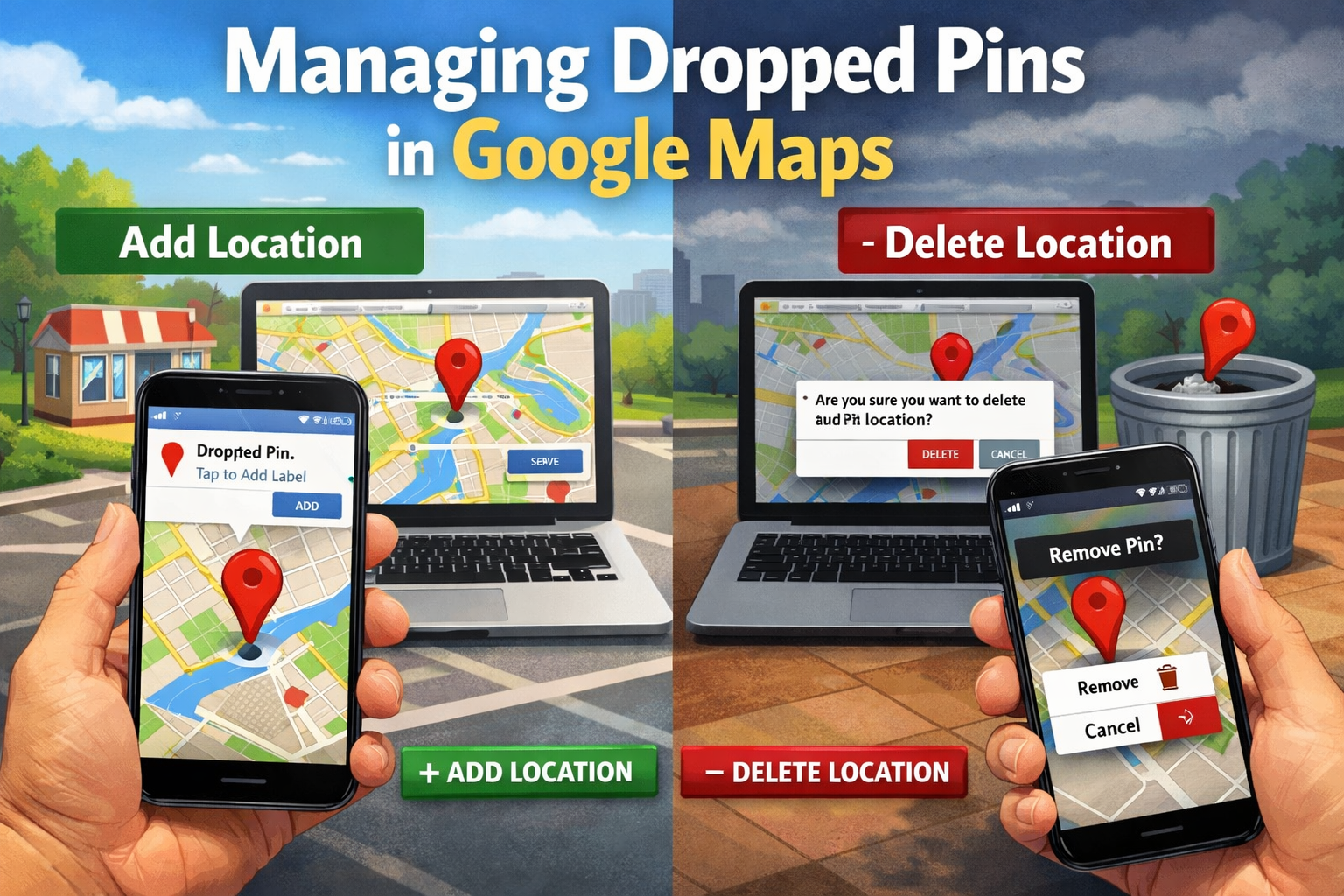
The Drop Pin feature in Google Maps allows you to mark any precise spot on the map, even if it lacks an official address or business name. It’s incredibly useful for highlighting temporary spots, personal landmarks, or exact meeting points in busy areas.
Whether you’re navigating crowded streets or saving a favorite hidden location, drop pins give you full control over your custom markers.
Why Are So Useful
Pin unmarked areas like parking spots, shortcuts, or scenic viewpoints.
Share exact coordinates instantly with friends or family.
Organize personal collections in saved lists for easy access.
Get precise directions without relying on street names.
Step-by-Step: Adding a Drop Pin on Mobile
1. Open the Google Maps app and navigate to your desired location by searching, zooming, or panning the map.
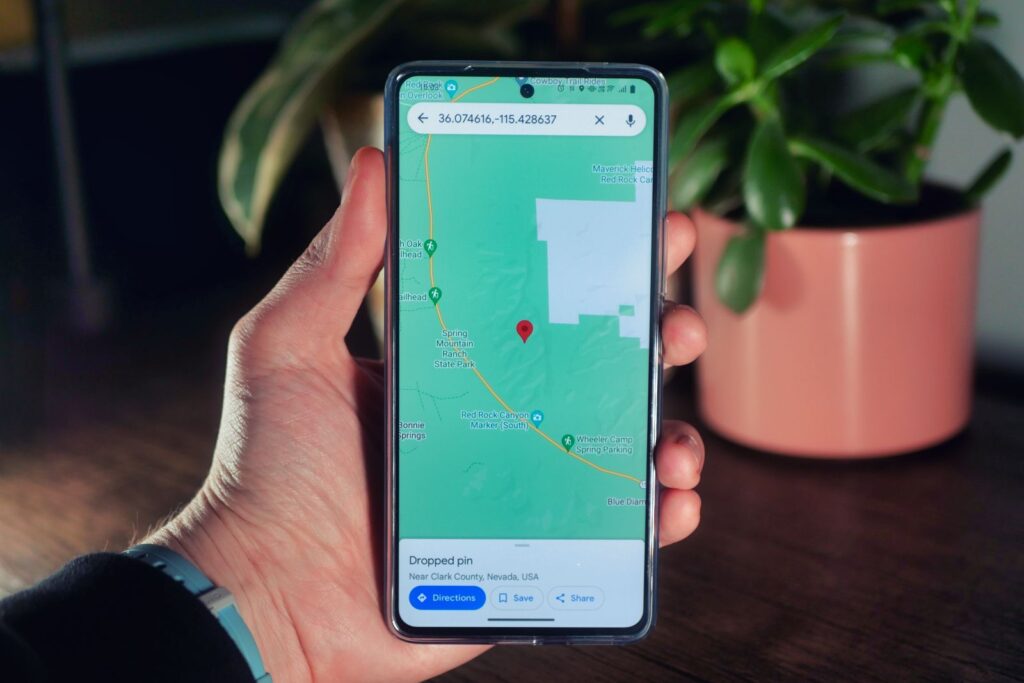
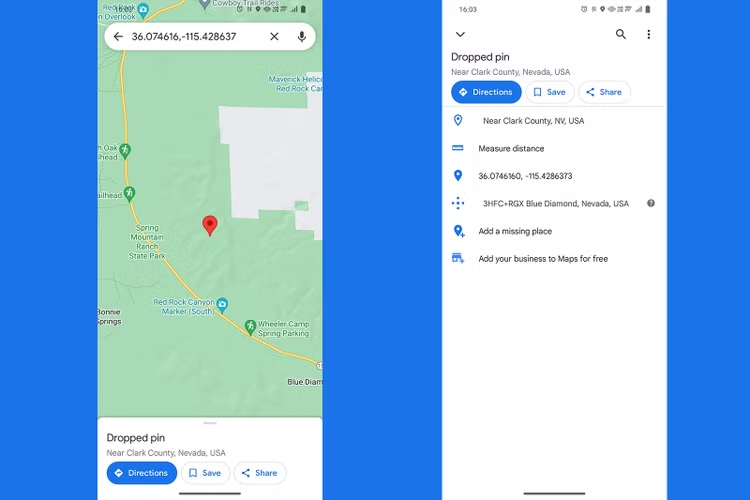
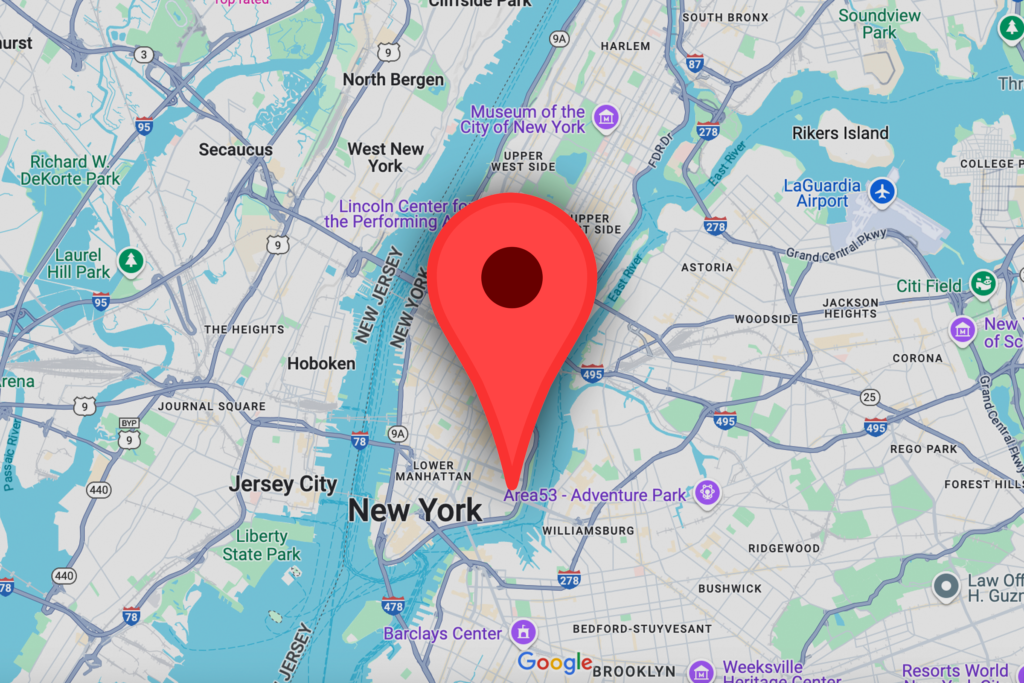
2. Press and hold your finger on the exact spot for 1-3 seconds. A red pin will drop with a small animation.
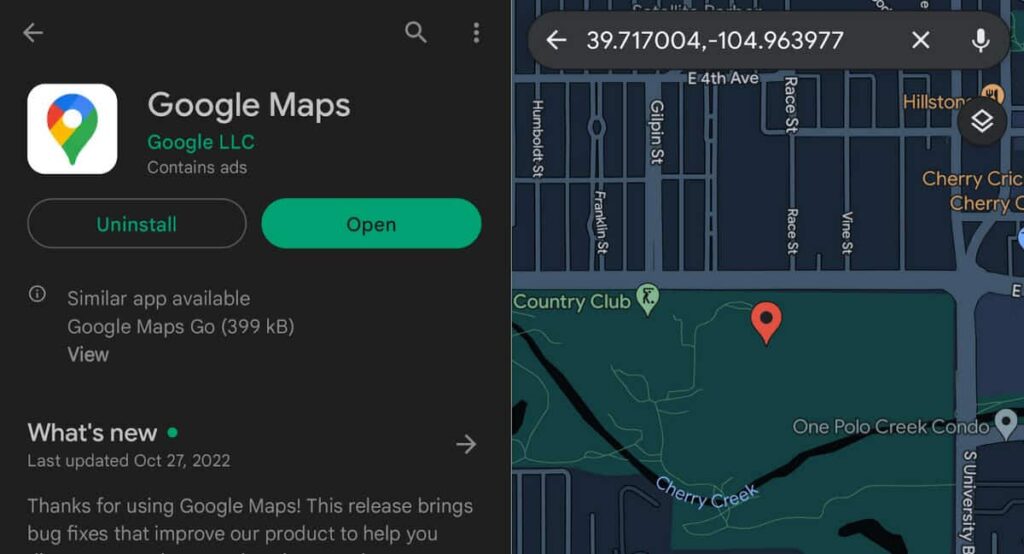
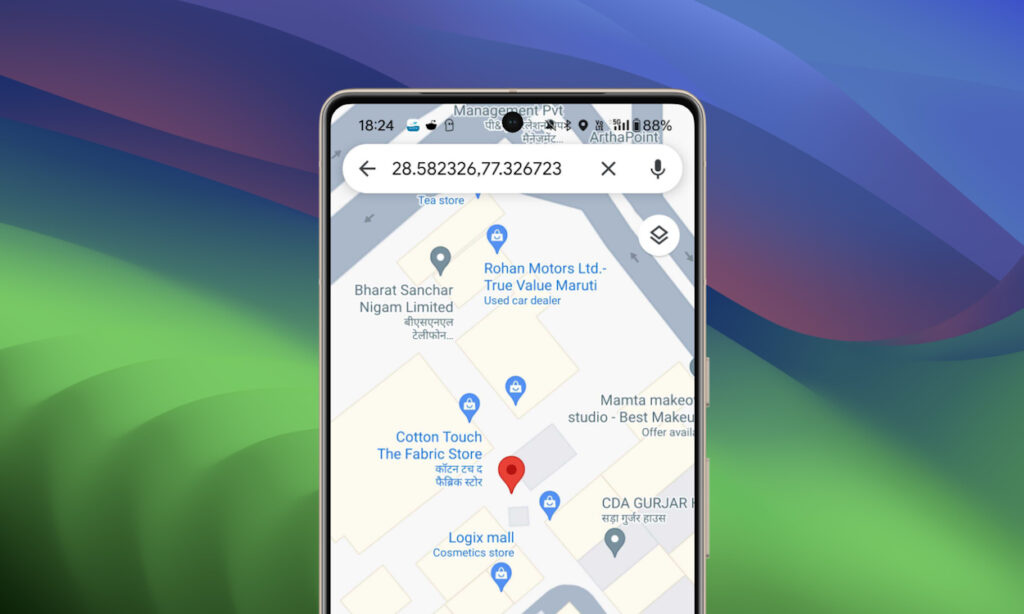
3. A bottom card pops up showing the pin along with coordinates and quick options like Directions, Save, and Share.
4. Tap Save to add it to Favorites, Want to go, or a custom list. You can label it (e.g., “Best Restaurant Spot”) and add notes.
5. Use Share to send the pinned location link via messaging apps for quick coordination.
Pro tip: If the pin lands slightly off, drag it before saving for perfect accuracy.
Adding a Drop a Pin on Desktop (Browser)
1. Go to maps.google.com and find your spot.
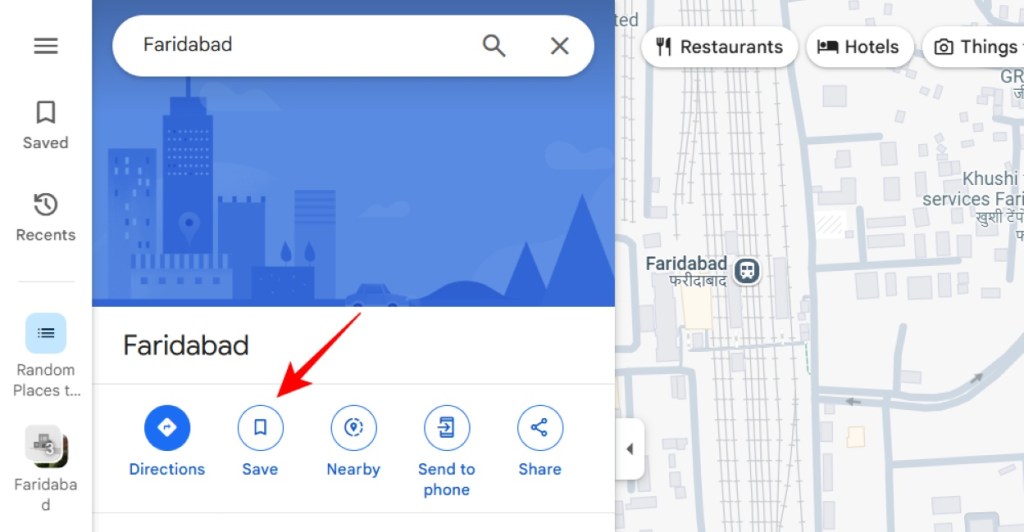
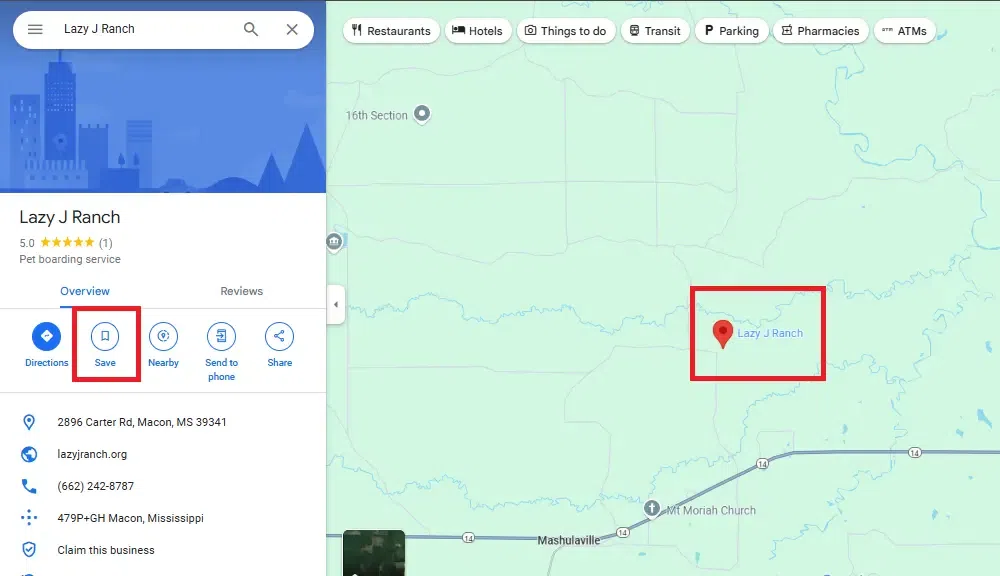
2. Left-click directly on the map. The red pin appears immediately with an info panel.
3. Click Save in the panel, choose a list, and add a custom label.
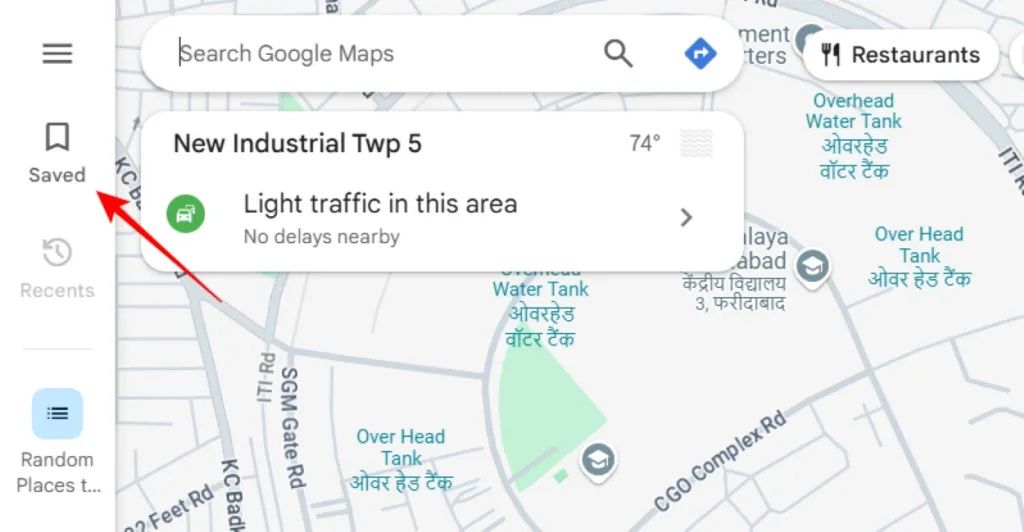
Pins sync across devices when you’re signed in. Managing and Organizing Saved Pins. Access all your saved pins via the “You” tab (bottom on mobile) → “Saved” → browse your lists.
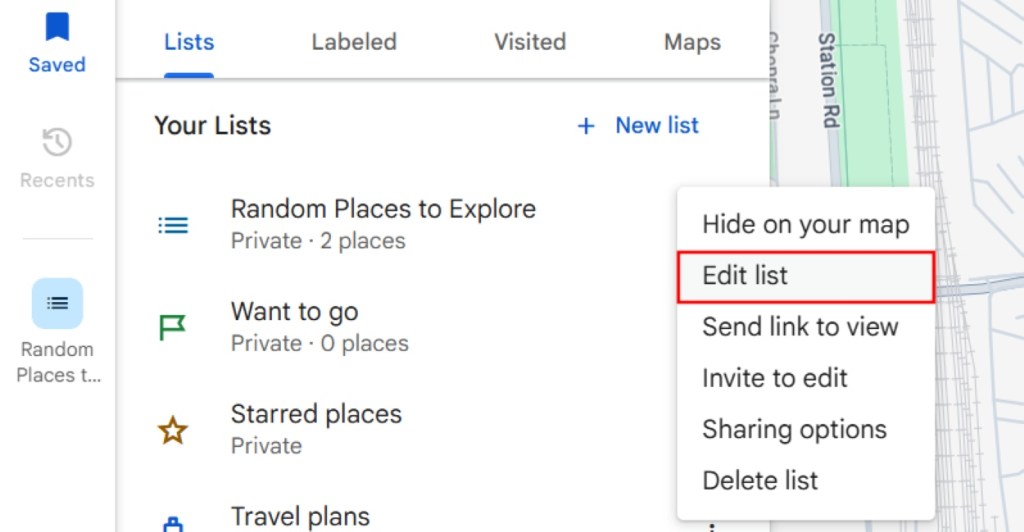
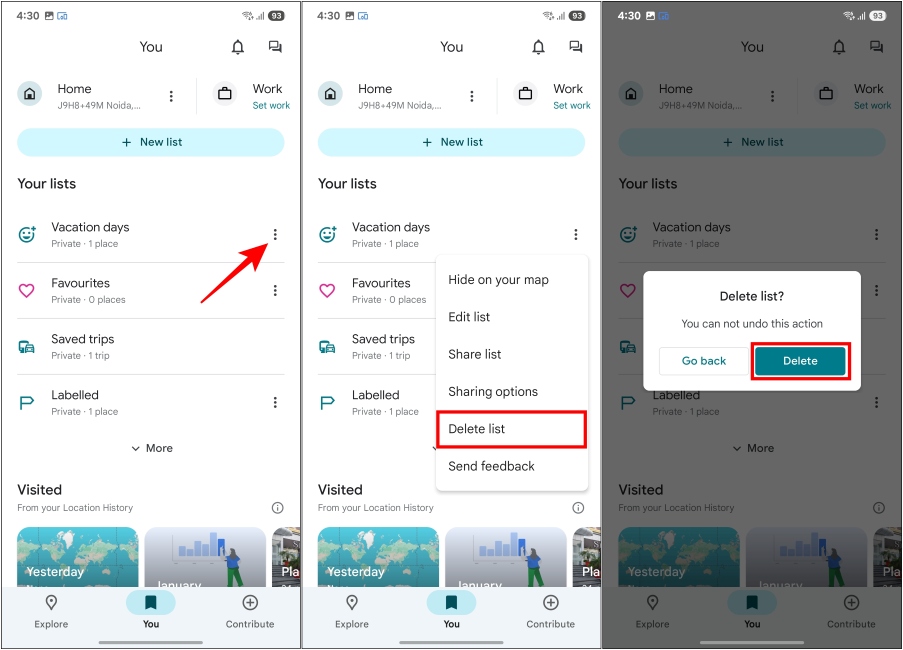
Edit labels, add notes, or hide/show entire lists to keep your map clean.
Deleting a Pin on Mobile
For temporary (unsaved) pins: Tap anywhere else on the map or swipe down the card—it disappears automatically.
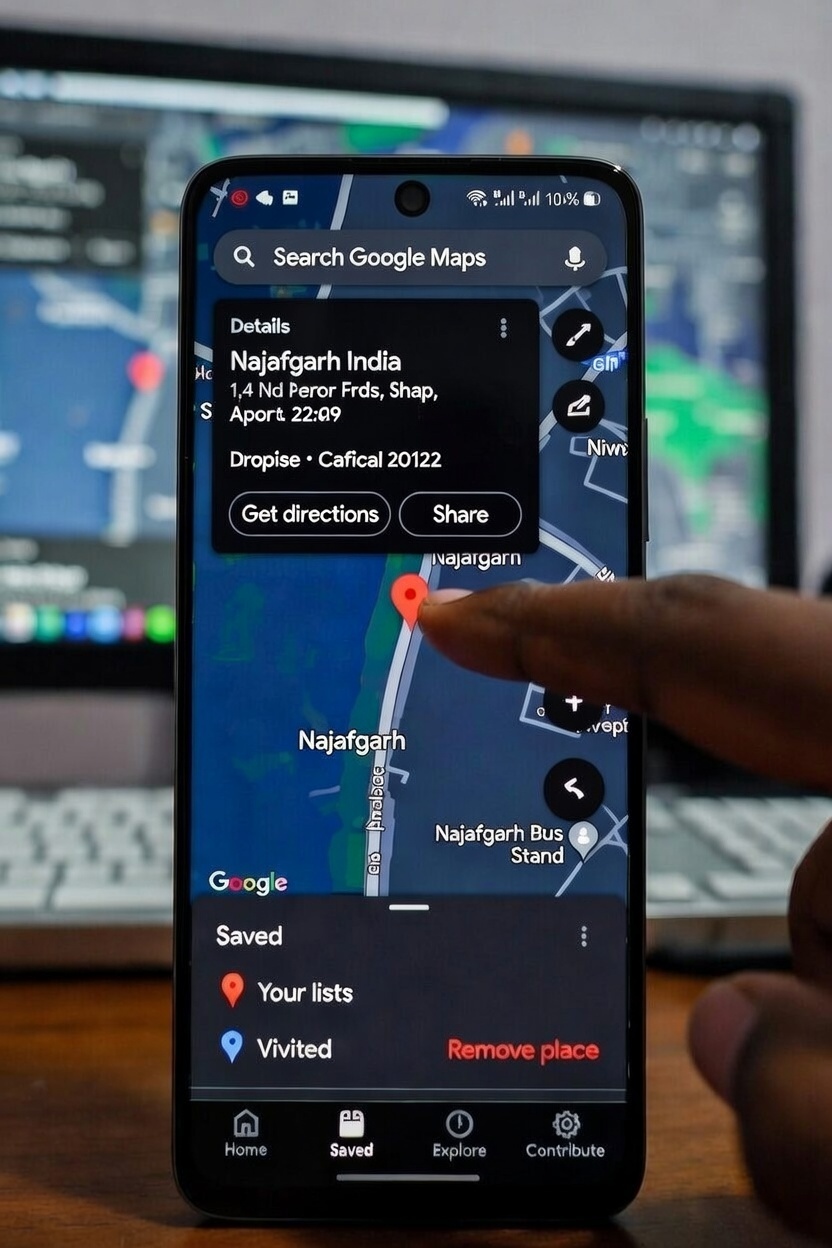
1. Tap the pin on the map to open its details card.
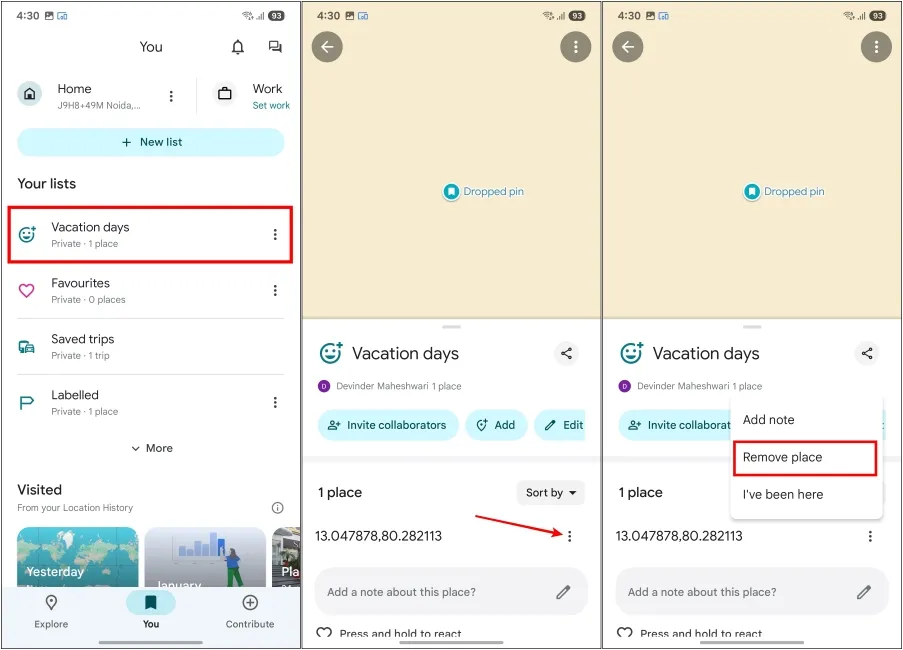
2. Scroll up and tap Remove place or Delete.
3. Confirm the action. The pin is removed from your map and lists.
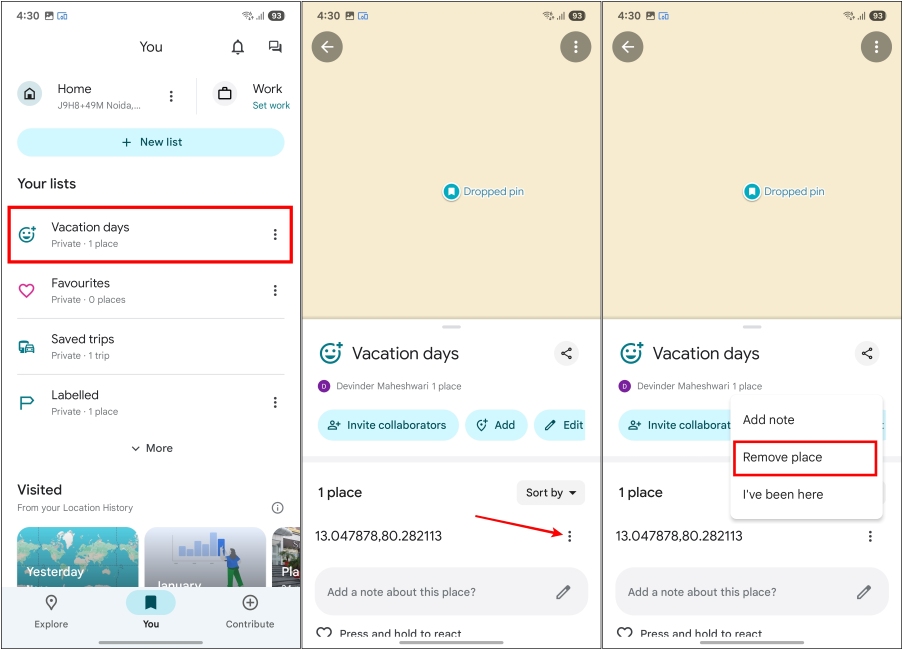
Alternative bulk method: In “Saved,” open a list, tap the entry’s three dots, and select remove/unsave.
Deleting on Desktop
1. Click the pinned spot to open the sidebar.
2. Click remove or unsave from your Saved menu in the left sidebar.
Bonus Tips for Better Pin Management
Use the “Measure distance” option in the pin card for quick calculations.
Create private lists for personal use only.
Regularly review and clean up saved lists to avoid overload.
Drop pins work great for real-time sharing during travel or events.
Mastering this simple feature makes Google Maps even more powerful for everyday navigation. Start dropping pins on your favorite spots today!
What’s your go-to use for drop pins? Share in the comments below! 🚩
Author : AKASH DAYAL GROUPSPublished on : February 4, 2026