
- Checkout Our latest Blog Collections
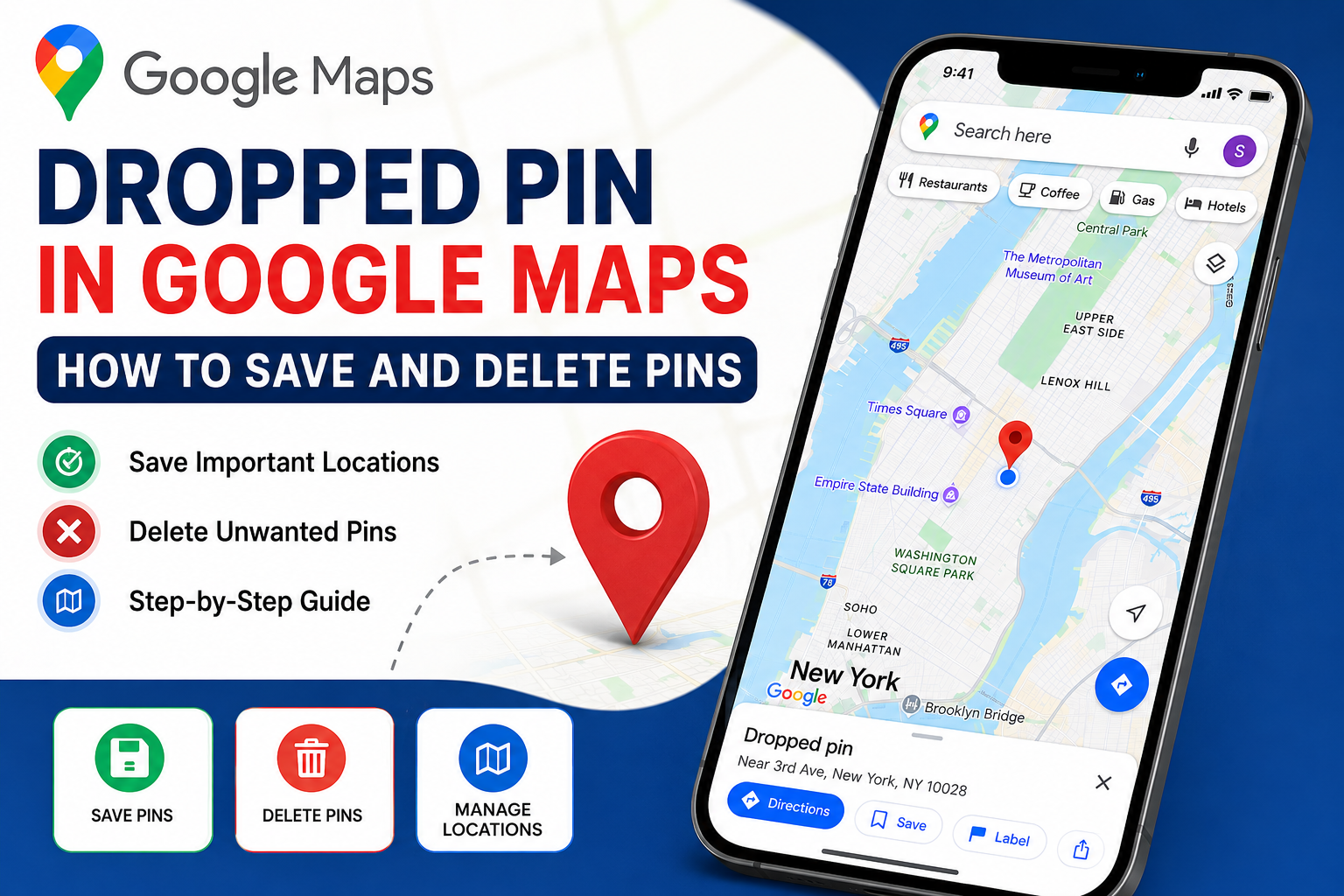
Google Maps has become one of the most widely used navigation and location tools in the world. Whether you are searching for a restaurant, locating a friend’s house, planning a road trip, or finding a place without an official address, Google Maps makes navigation simple and accurate. One of its most useful features is the Dropped Pin feature.
A Dropped Pin in Google Maps allows users to mark any location on the map, even when the location does not have a listed address. This feature is extremely helpful for travelers, delivery drivers, business owners, real estate professionals, hikers, and everyday users who want to save or share precise locations.
In this complete guide, you will learn everything about dropped pin in Google Maps, including how to create, save, share, manage, and delete pins on Android, iPhone, and desktop devices.
A dropped pin is a temporary marker that you place manually on any drop location within Google Maps. Instead of searching for a specific address, users can simply tap or click on a point on the map to create a pin.

The pin identifies the exact geographic location and provides coordinates that can be saved, shared, or used for navigation.
Dropped pins are useful when:
Once placed, the pin displays detailed information about the location and offers options for navigation, sharing, saving, and labeling.
Many locations cannot be accurately identified through traditional addresses. A dropped pin helps users pinpoint exact locations with precision.

Friends and family can easily locate each other by sharing a dropped pin instead of explaining directions.
Many users drop a pin when parking their vehicle in large parking lots to remember where they parked.
Hikers, campers, and travelers often use dropped pins to mark trails, campsites, viewpoints, and other important landmarks.
Delivery drivers can receive precise locations through dropped pins when addresses are incomplete or unavailable.
Property agents and buyers frequently share dropped pins to locate properties accurately.
Dropped pins make it easier to guide attendees to event venues, wedding locations, outdoor gatherings, and conference centers.
Android users can quickly drop pin on Android in just a few seconds.
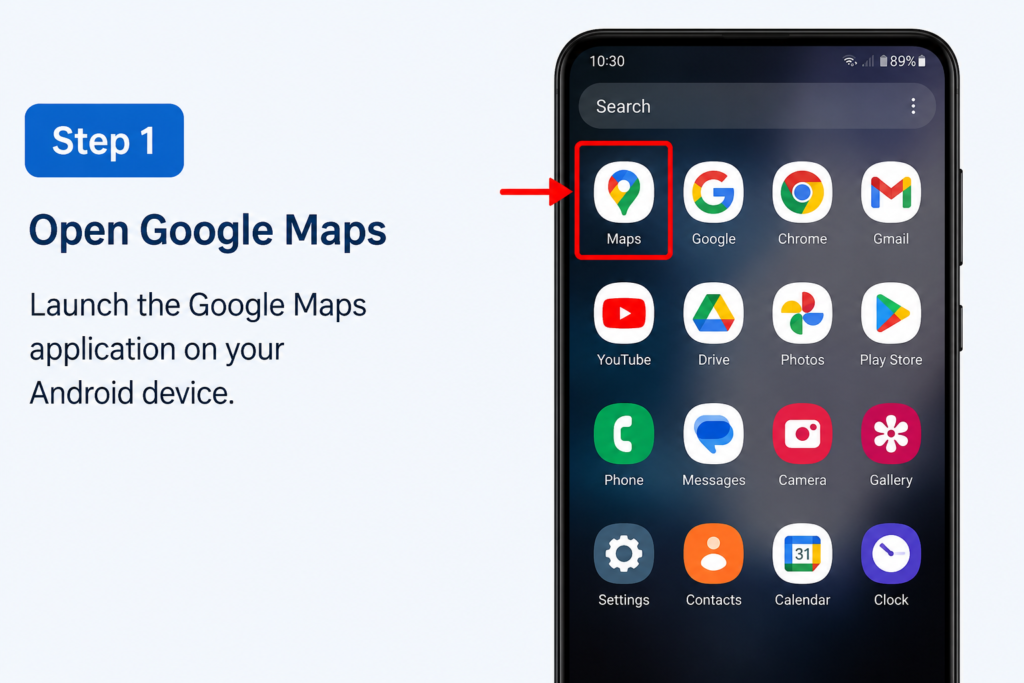
Launch the Google Maps application on your Android device.
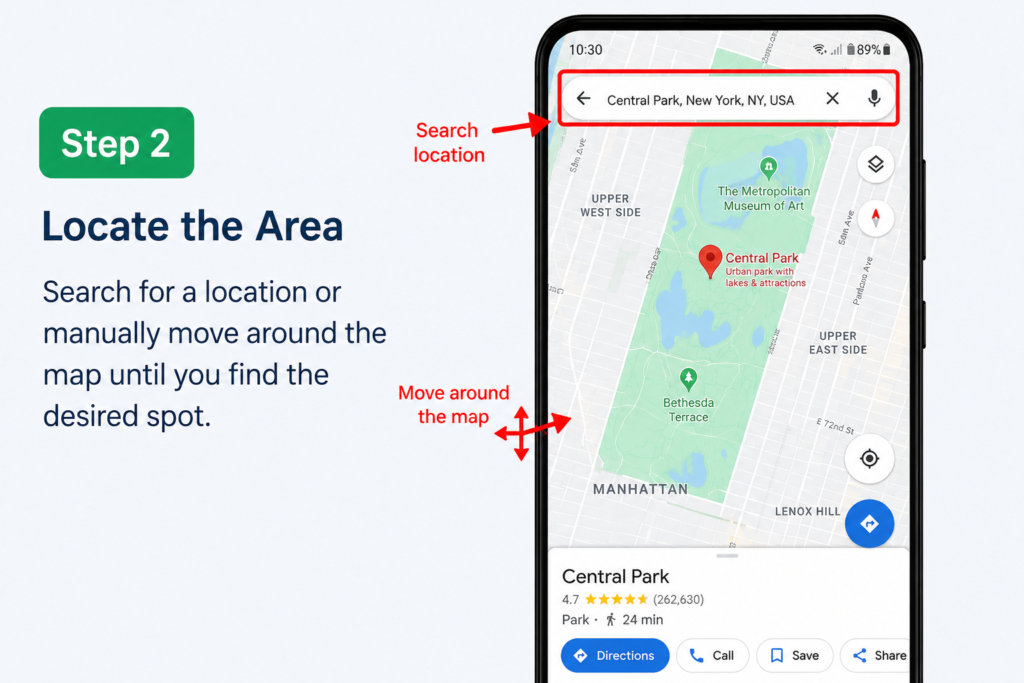
Search for a location or manually move around the map until you find the desired spot.
Tap and hold the exact location on the map.
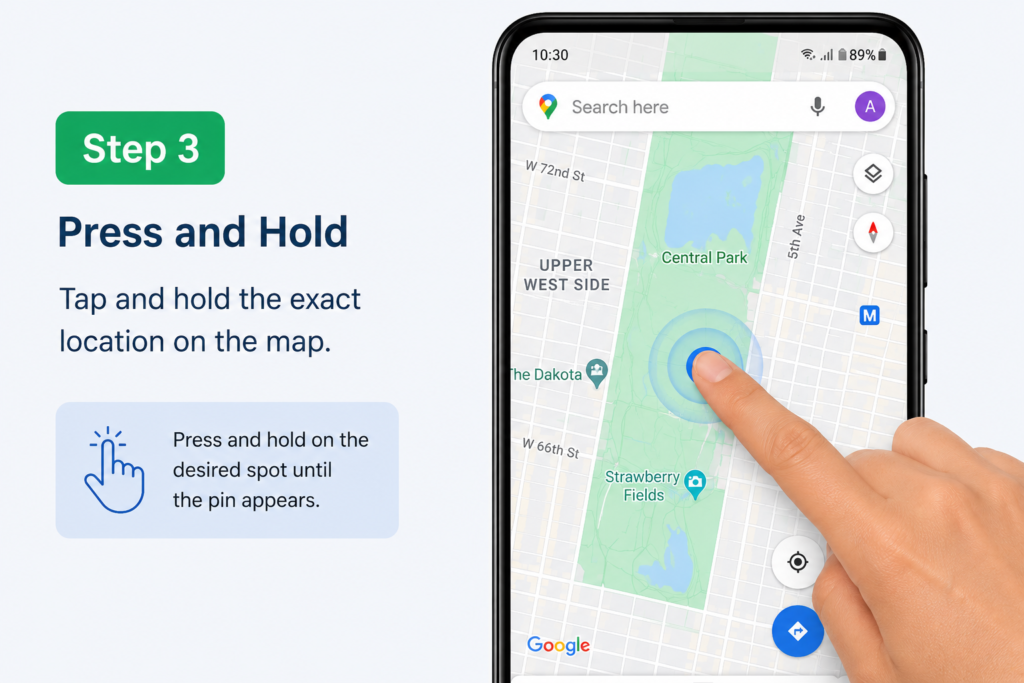
A red pin will appear at that location.
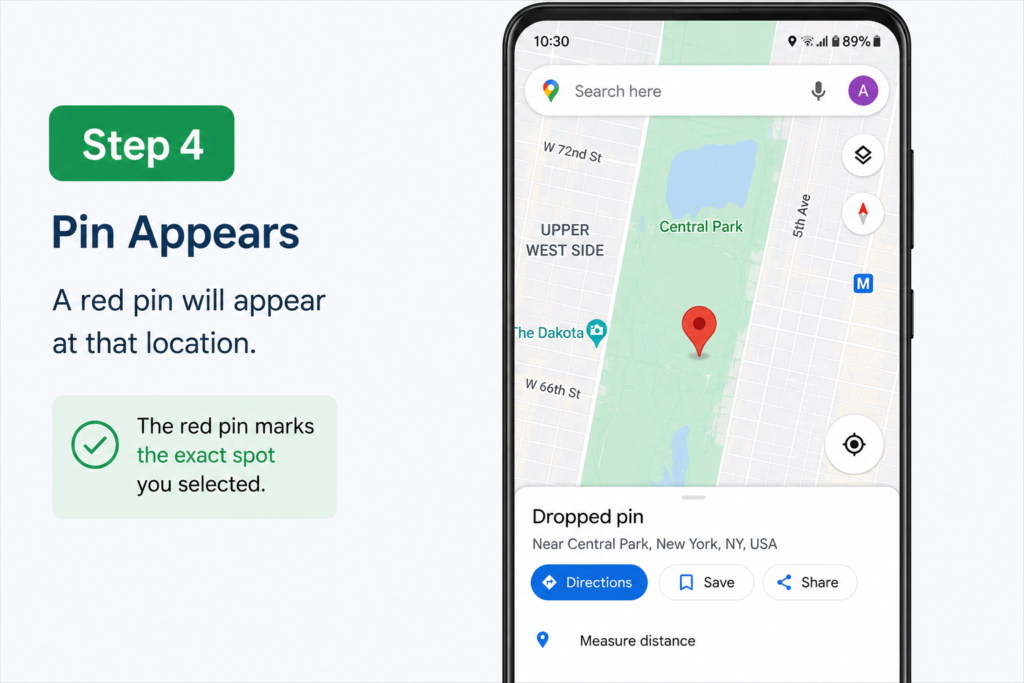
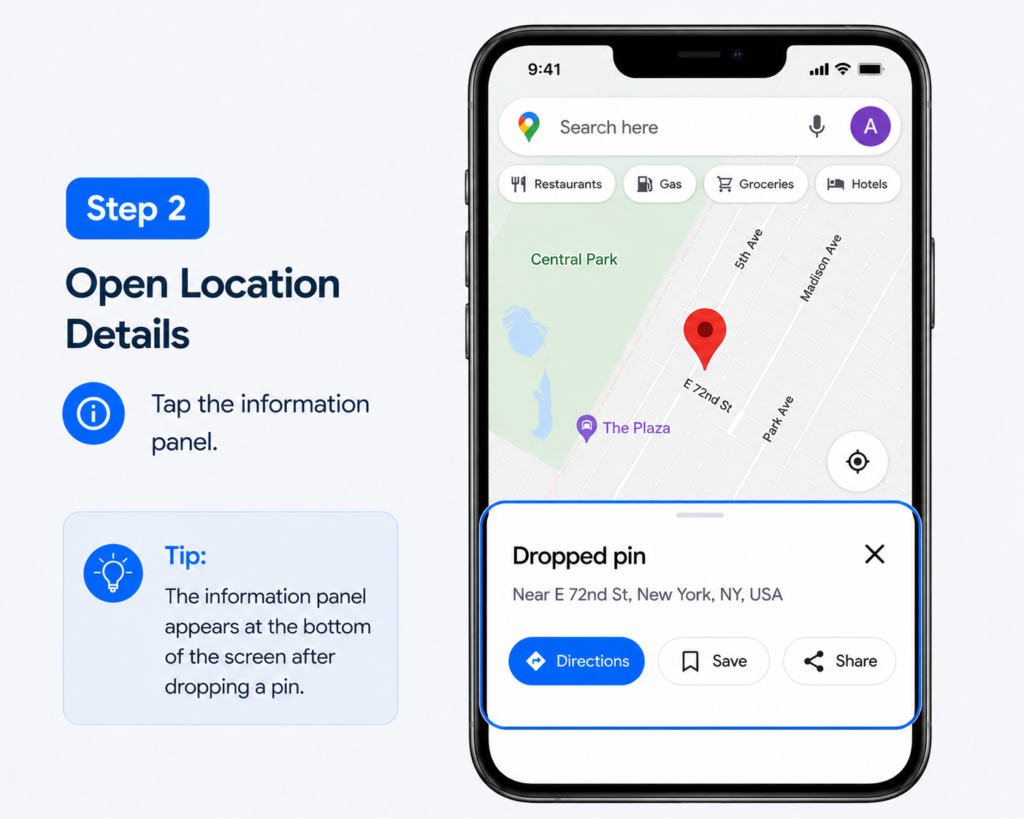
A location information panel will appear at the bottom of the screen.
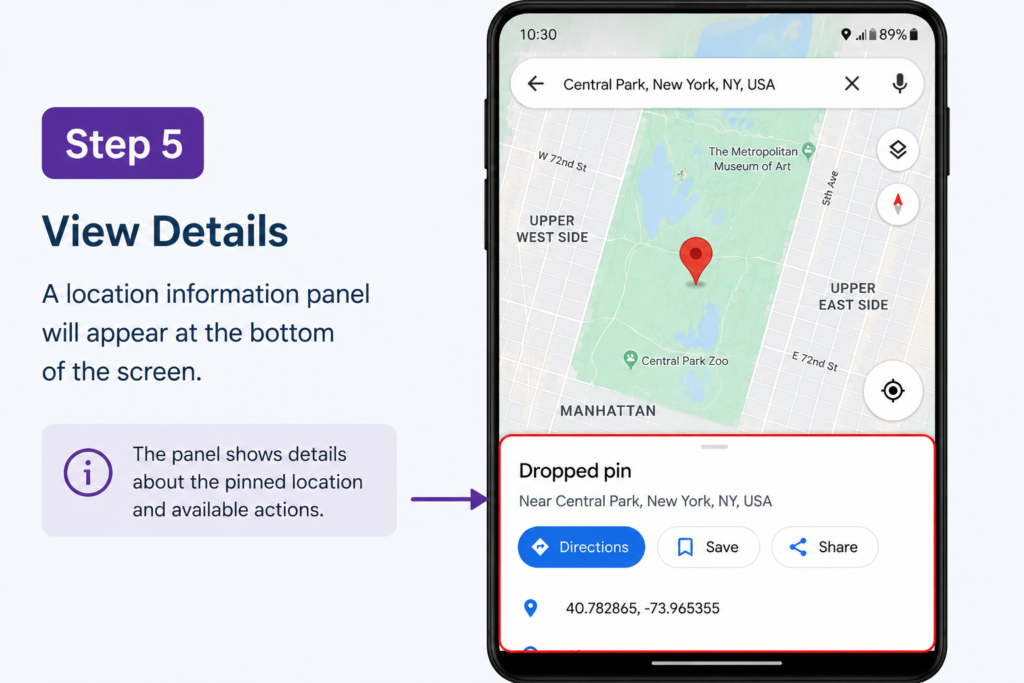
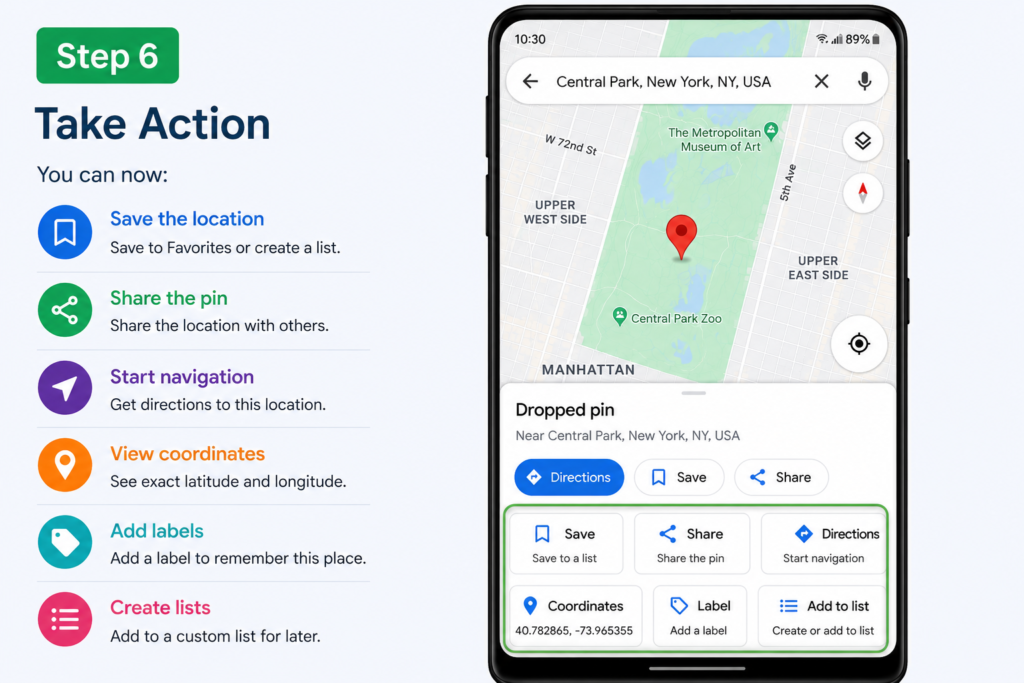
You can now:
The dropped pin remains active until another location is selected or the pin is removed.
The process is nearly identical for iPhone users. when you use a dropped pin iPhone feature in Google Maps.
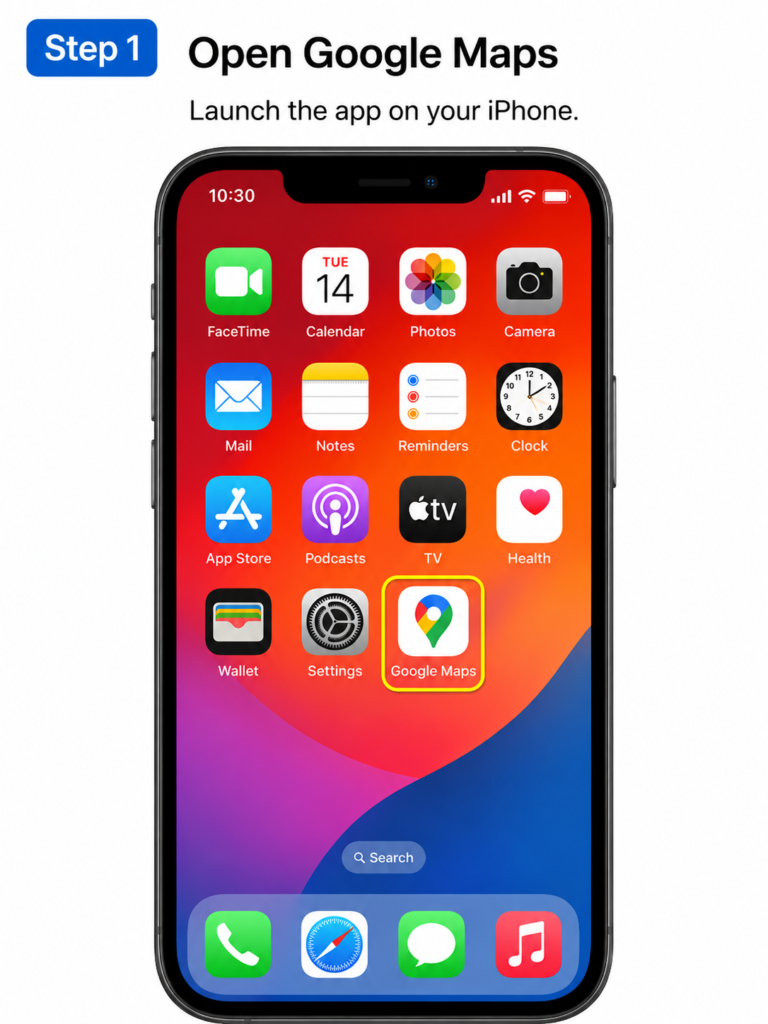
Launch the app on your iPhone.
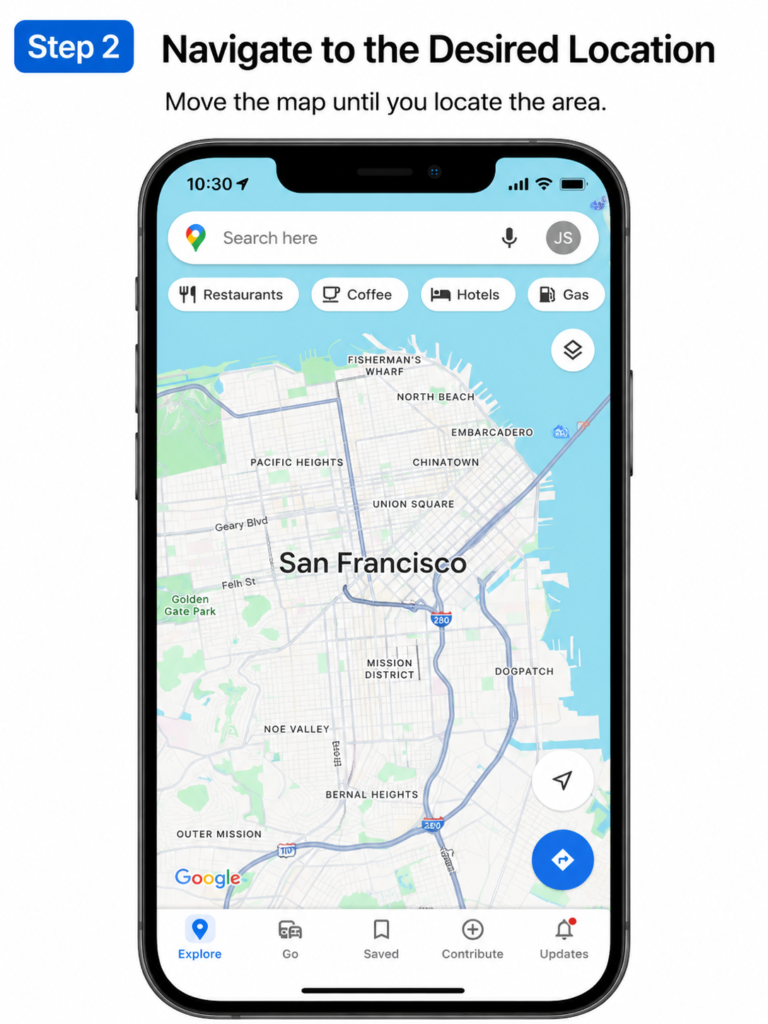
Move the map until you locate the area.
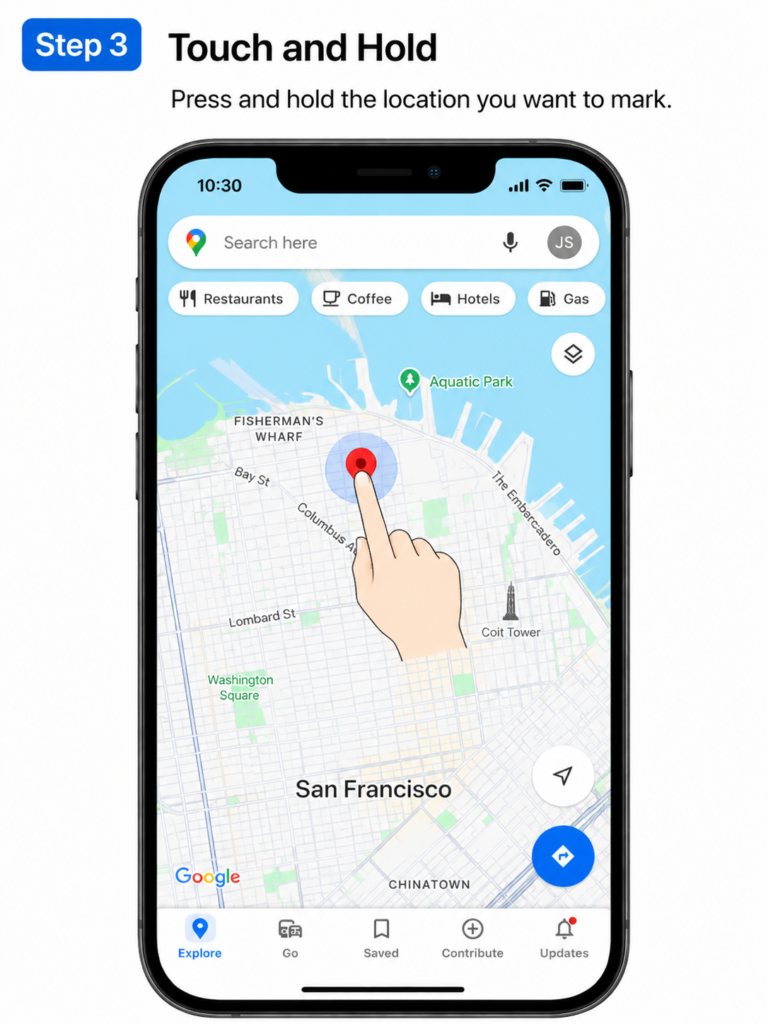
Press and hold the location you want to mark.
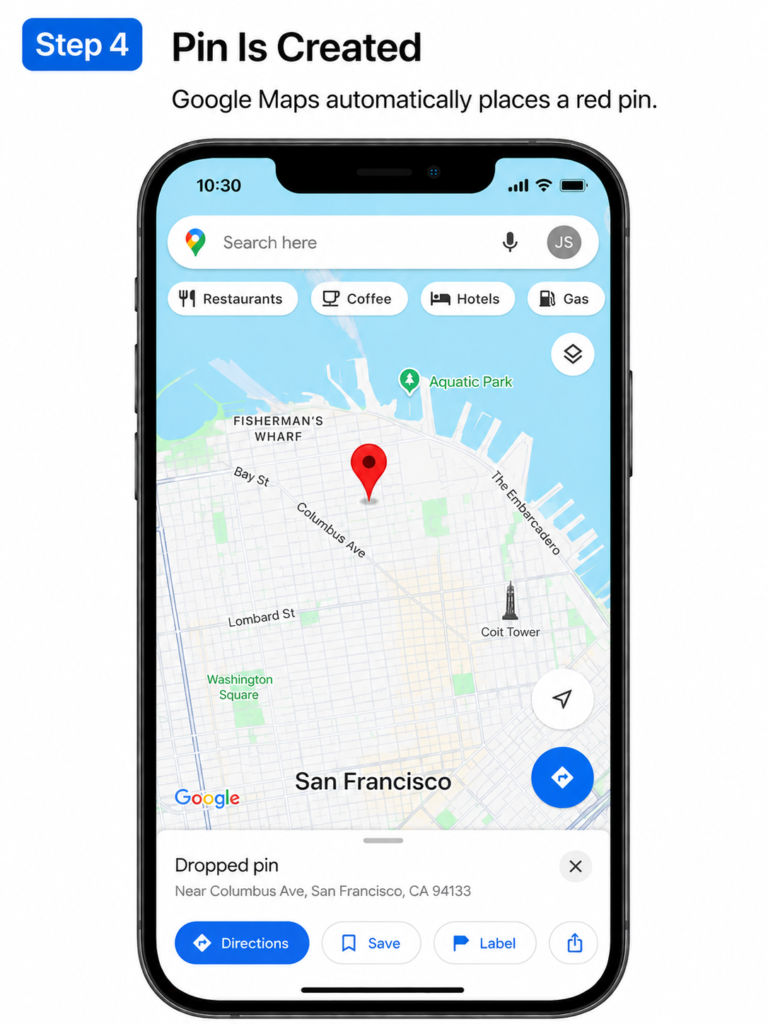
Google Maps automatically places a red pin.
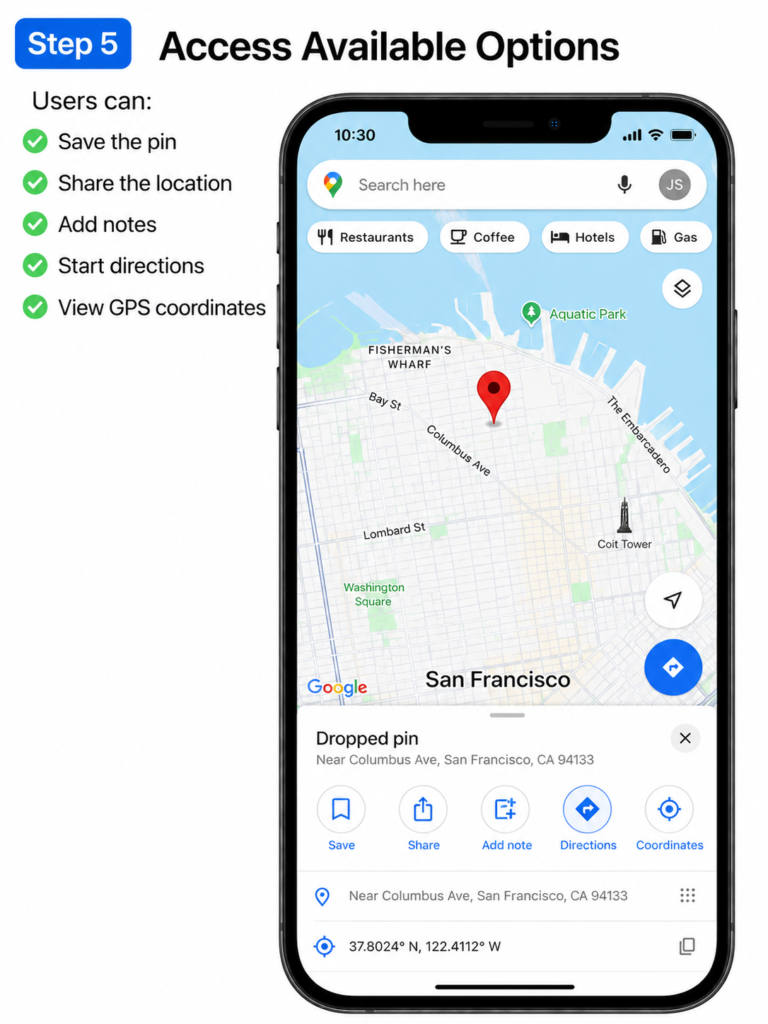
Users can:
This makes location sharing extremely easy between Apple and Android devices.
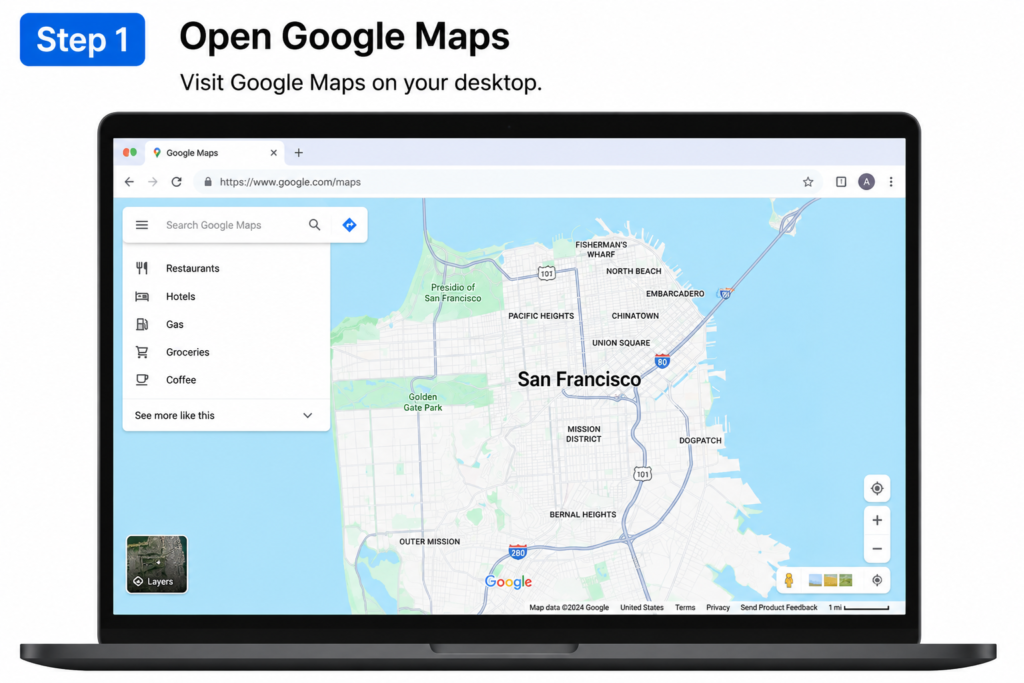
Desktop users can also create dropped pins on desktop directly from their web browser.
Visit Google maps on your desktop.
Find the area you want to mark.
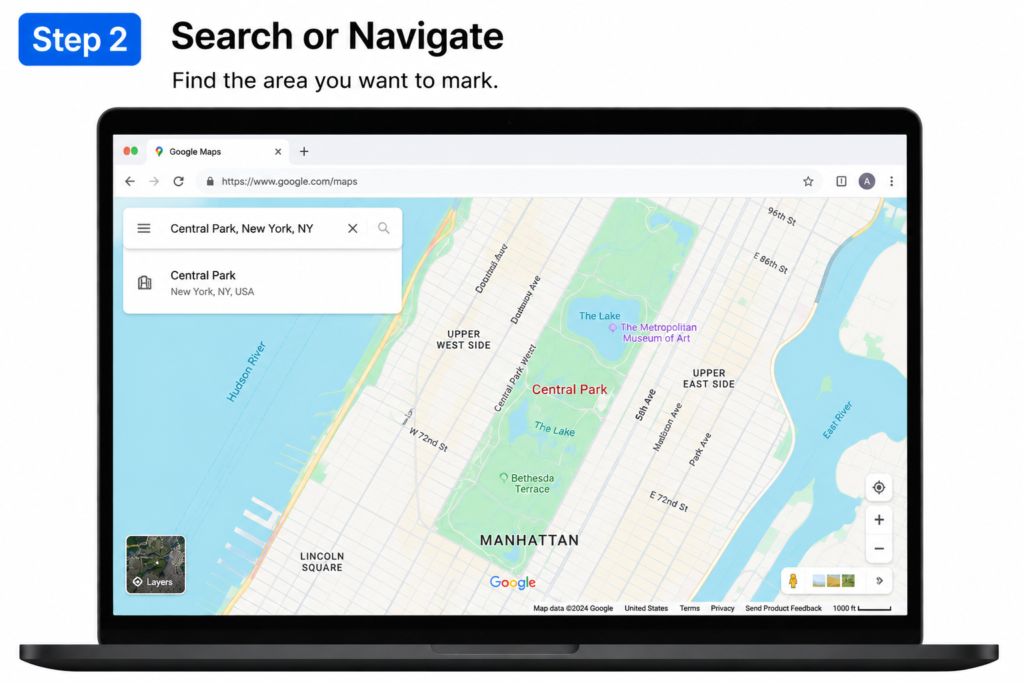
Single-click any point on the map.

Google Maps displays location details in a pop-up window.
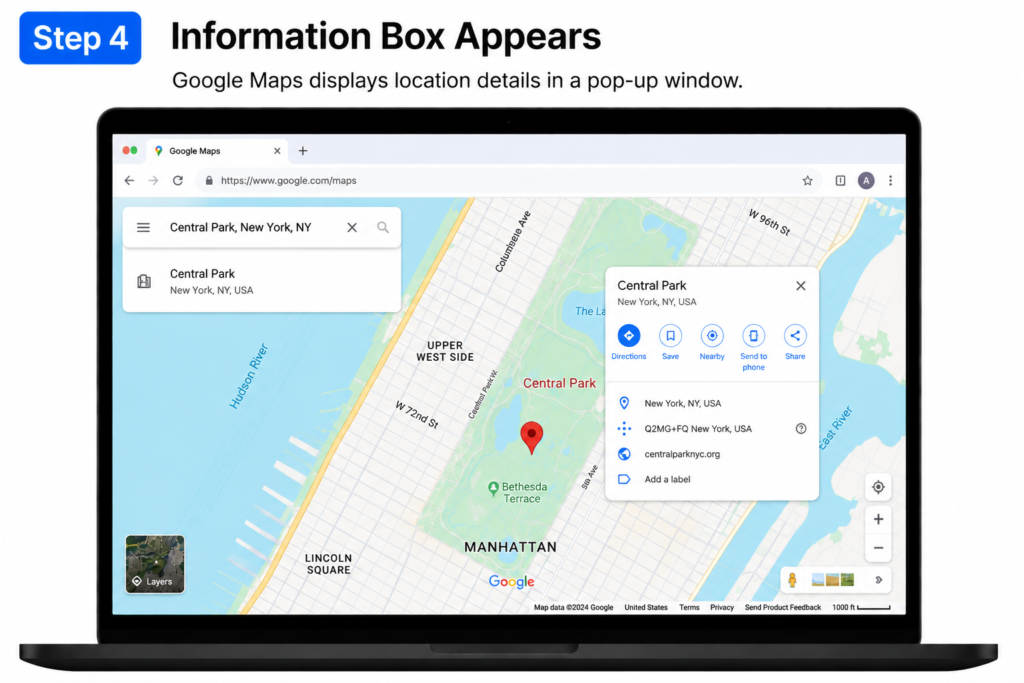

You can:
Desktop access is especially useful for trip planning and route management.
Saving locations allows quick access in the future.
Place a pin on your desired location.
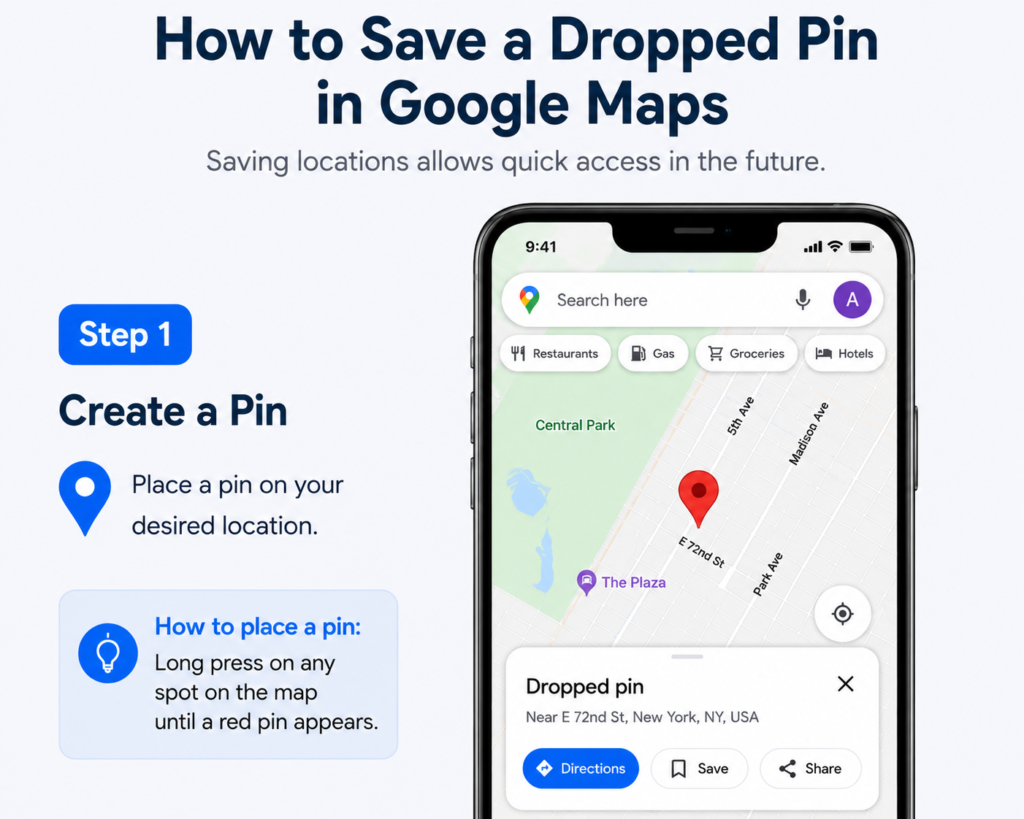
Tap the information panel.
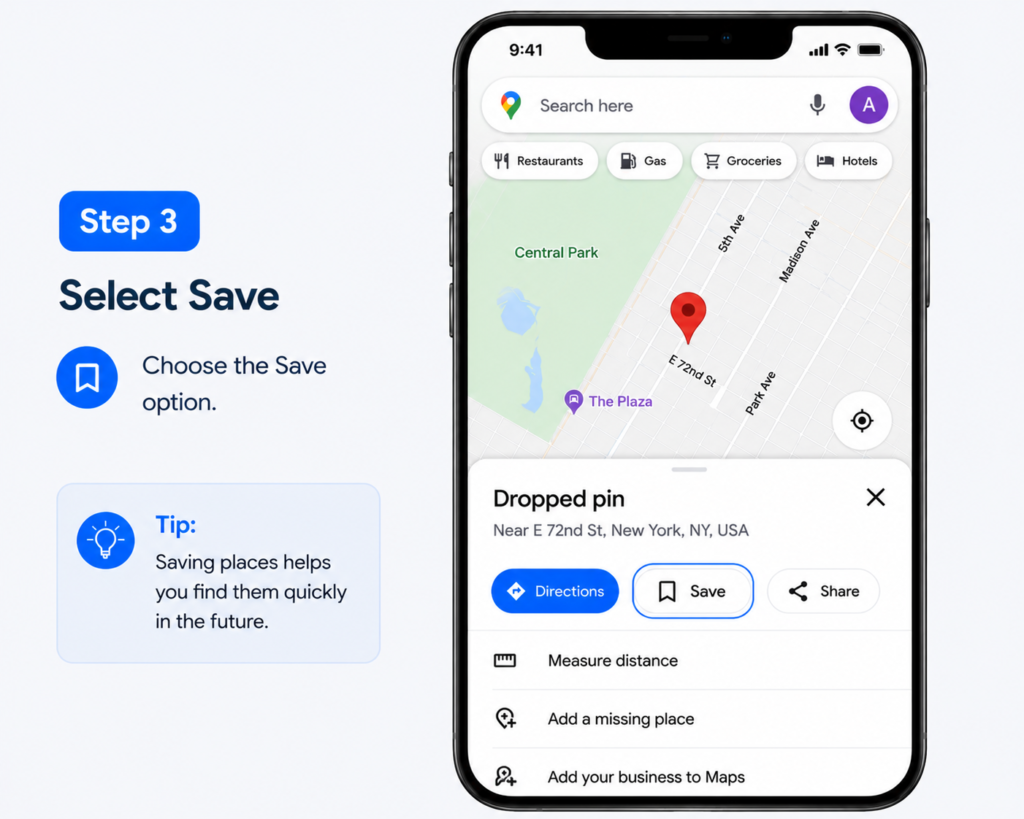
Choose the Save option.
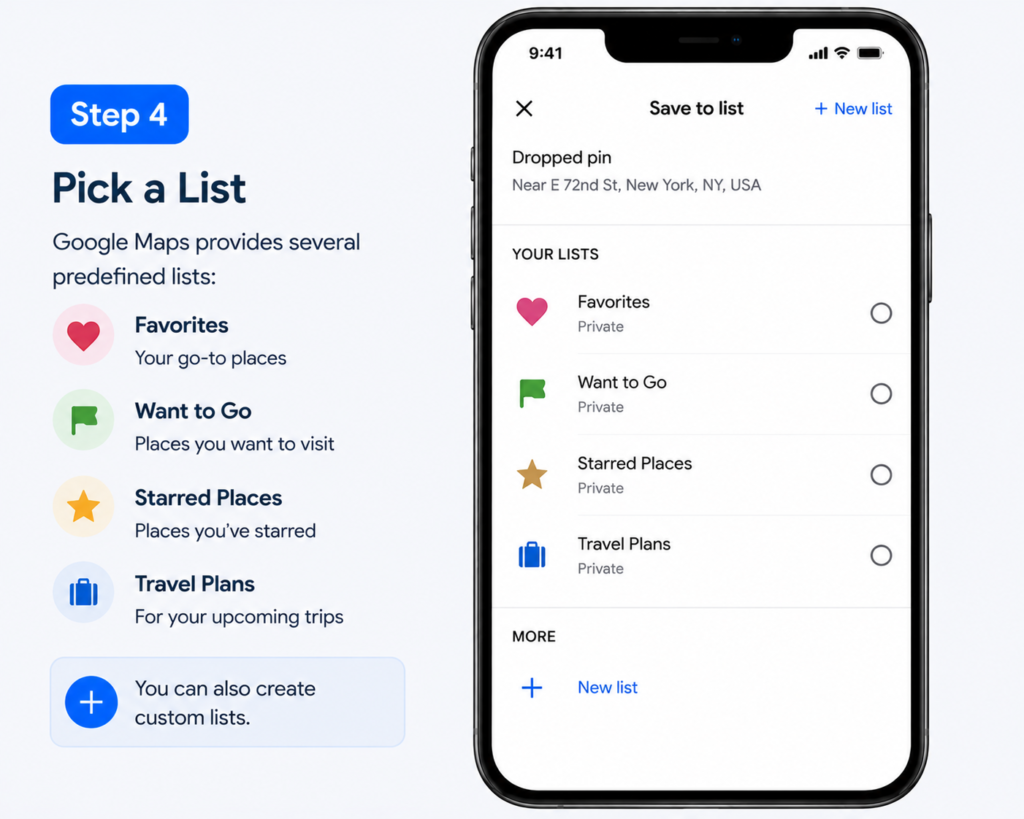
Google Maps provides several predefined lists:
You can also create custom lists.
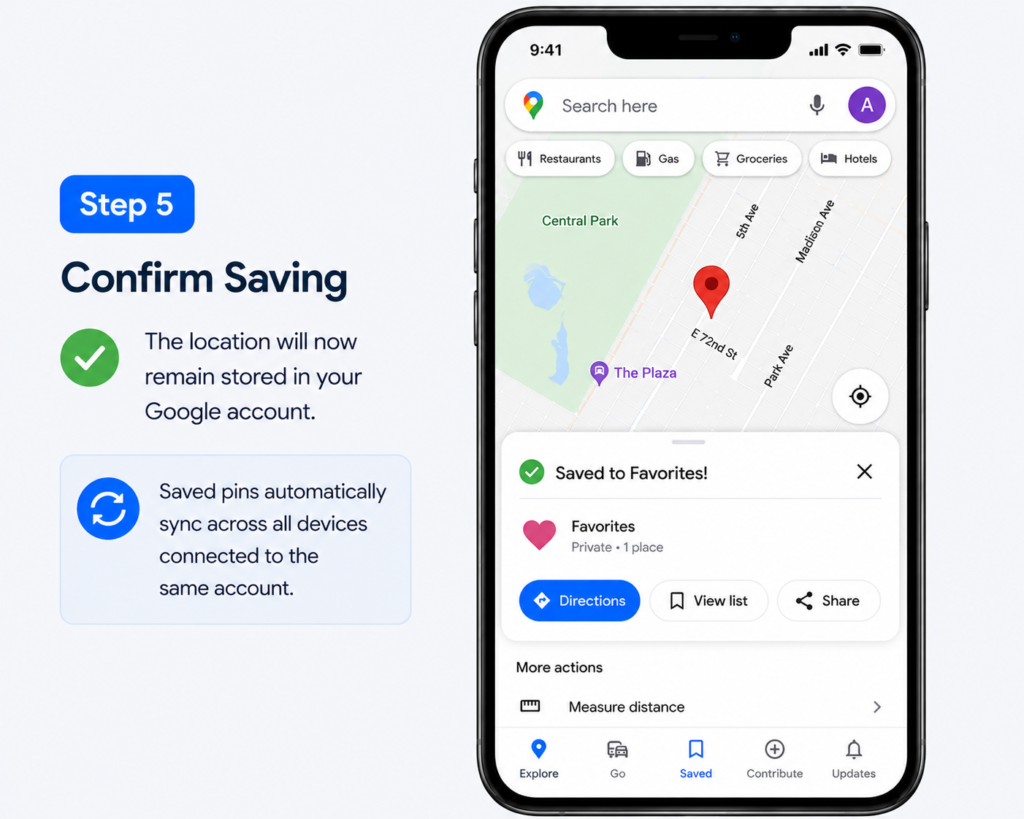
The location will now remain stored in your Google account.
Saved pins automatically sync across all devices connected to the same account.
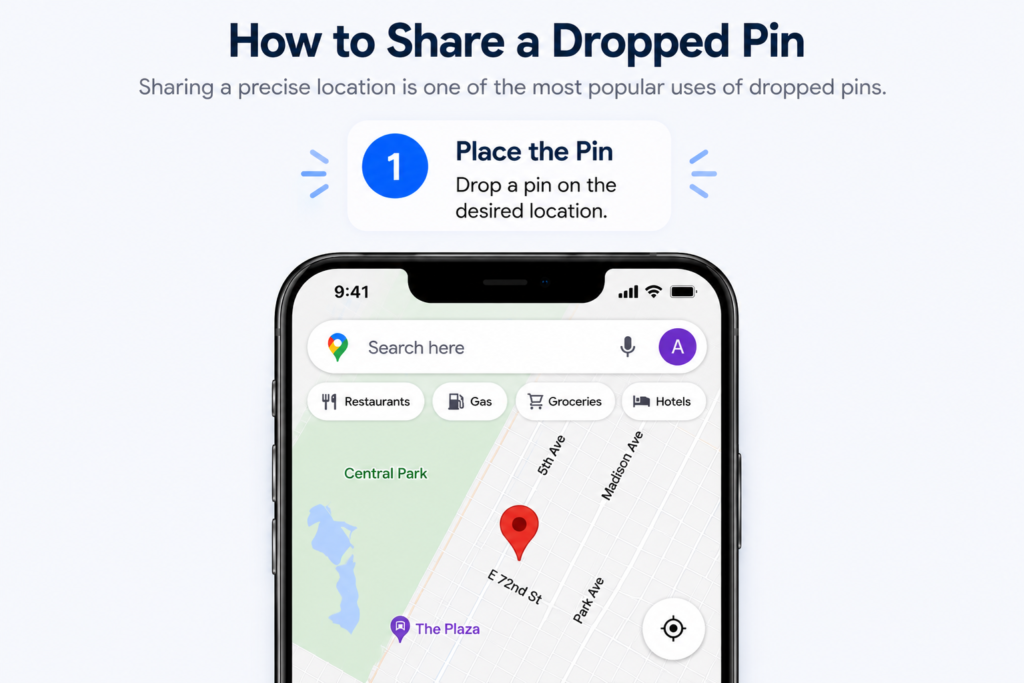
Sharing a precise location is one of the most popular uses of dropped pins.
Drop a pin on the desired location.
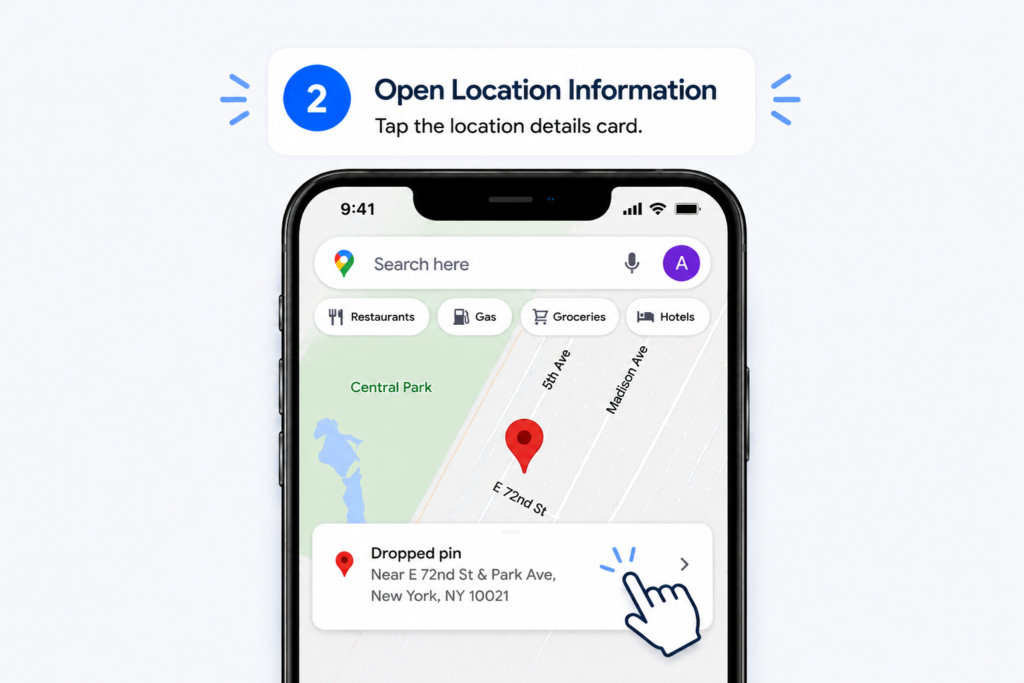
Tap the location details card.
Select the Share option.
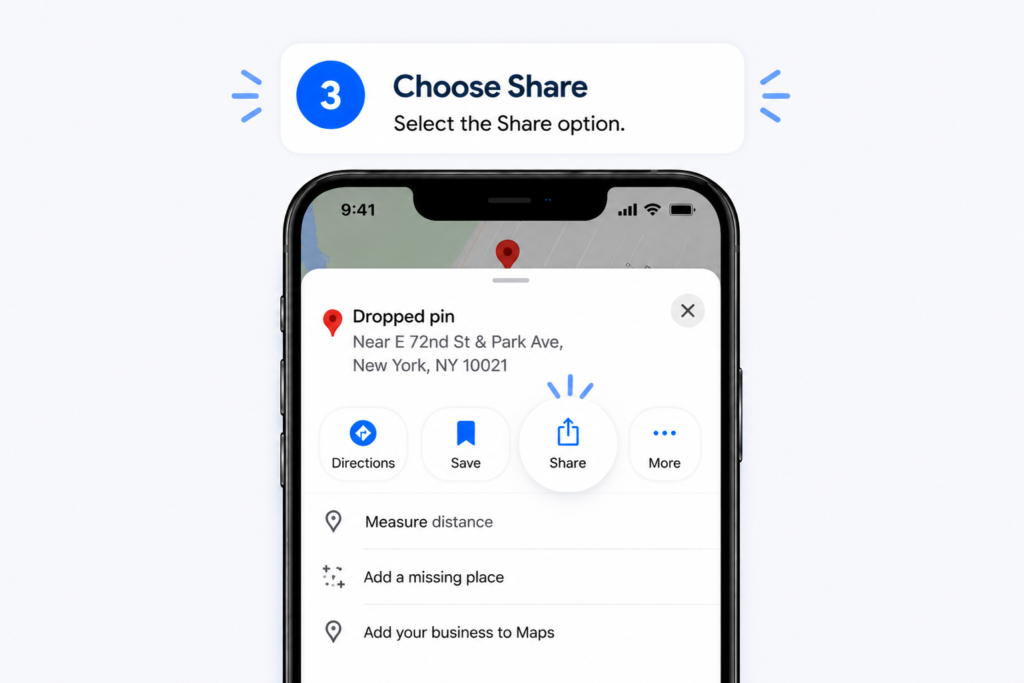
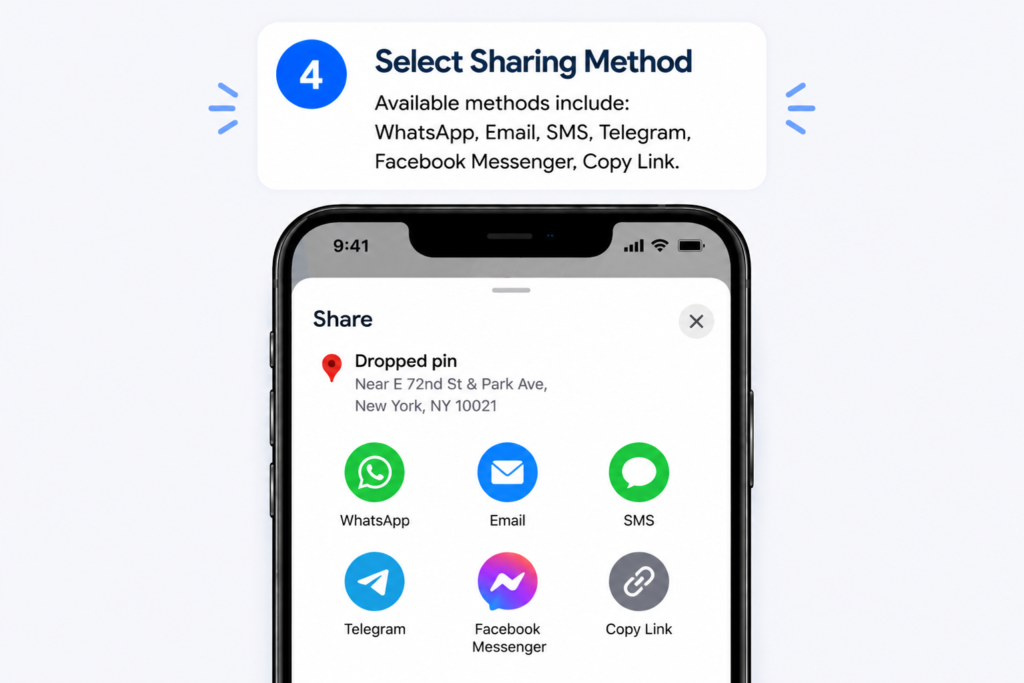
How to send a pin location by long pressing a place on Google Maps and tapping the share option to instantly send your exact location.
Available methods include:
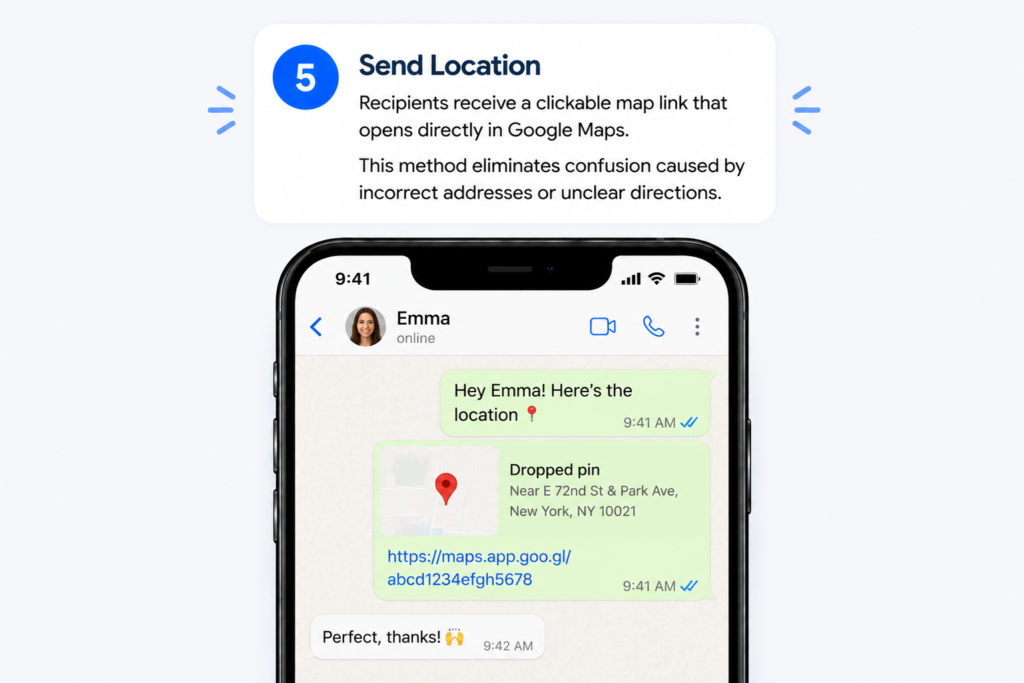
Recipients receive a clickable map link that opens directly in Google Maps.
This method eliminates confusion caused by incorrect addresses or unclear directions.
Every dropped pin includes exact GPS coordinates.

Coordinates help users identify locations with greater precision than traditional addresses.

Latitude: 28.6139
Longitude: 77.2090
Coordinates are commonly used for:
Labels help organize important locations.

Examples:
Custom labels simplify future searches.
Google Maps allows users to organize locations into custom categories.
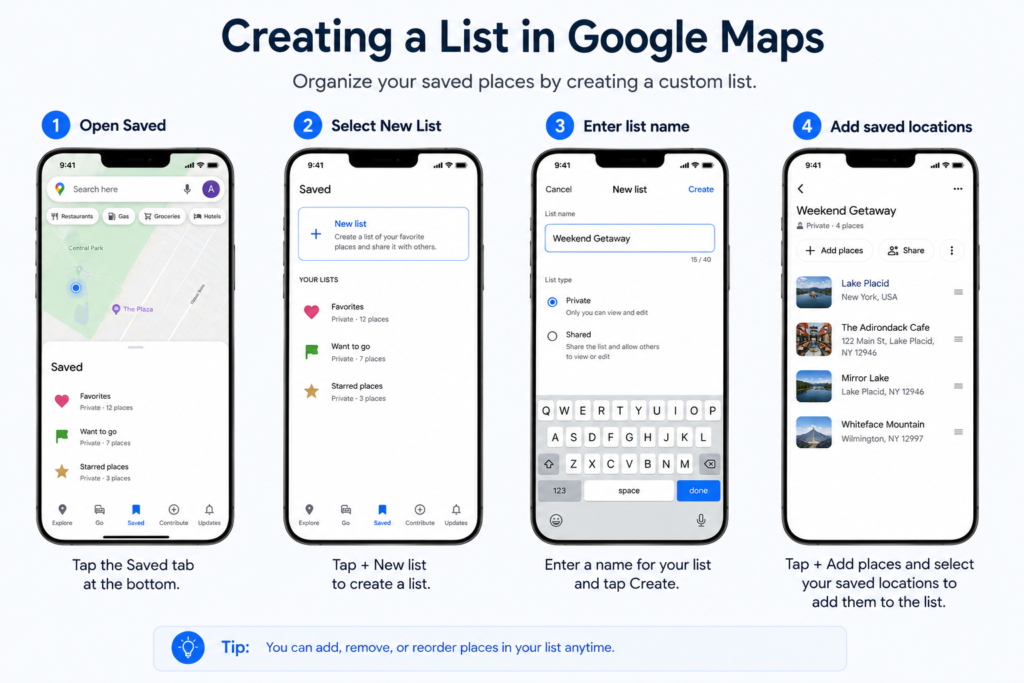
Organized lists improve travel planning and location management.
Travelers often use dropped pins to build detailed itineraries.
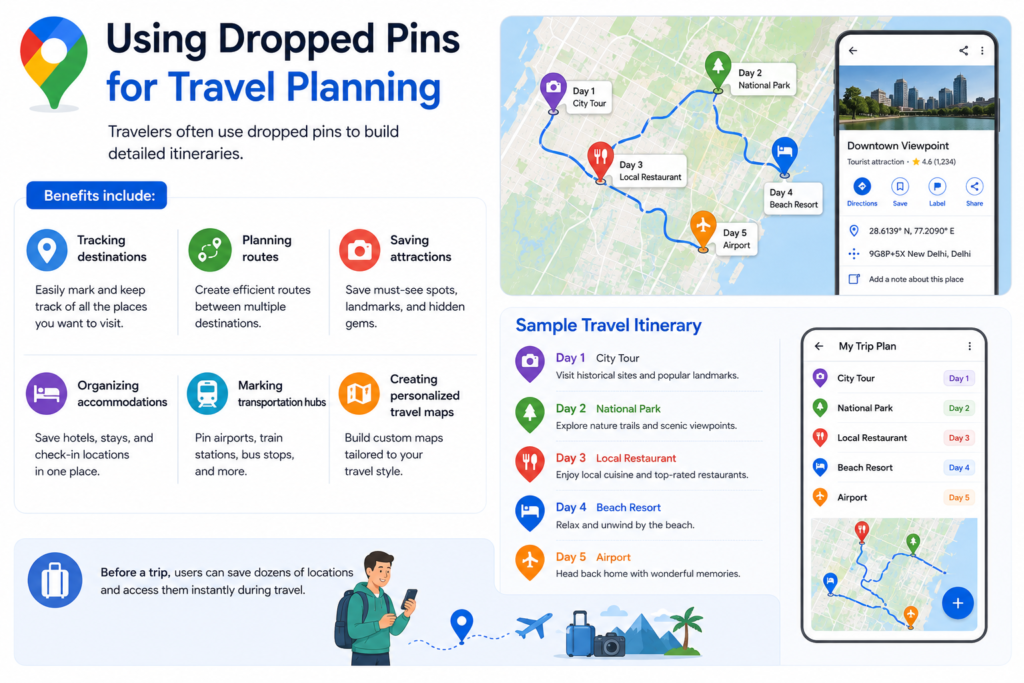
Benefits include:
Before a trip, users can save dozens of locations and access them instantly during travel.
Google Maps supports offline navigation.
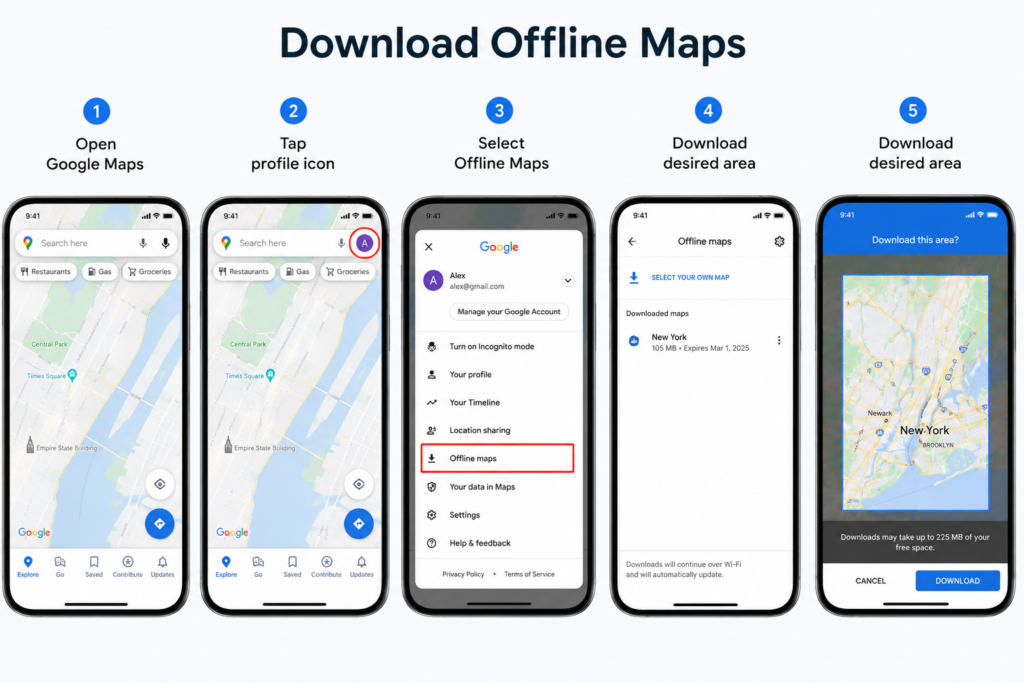
Previously saved locations remain accessible within downloaded map regions.
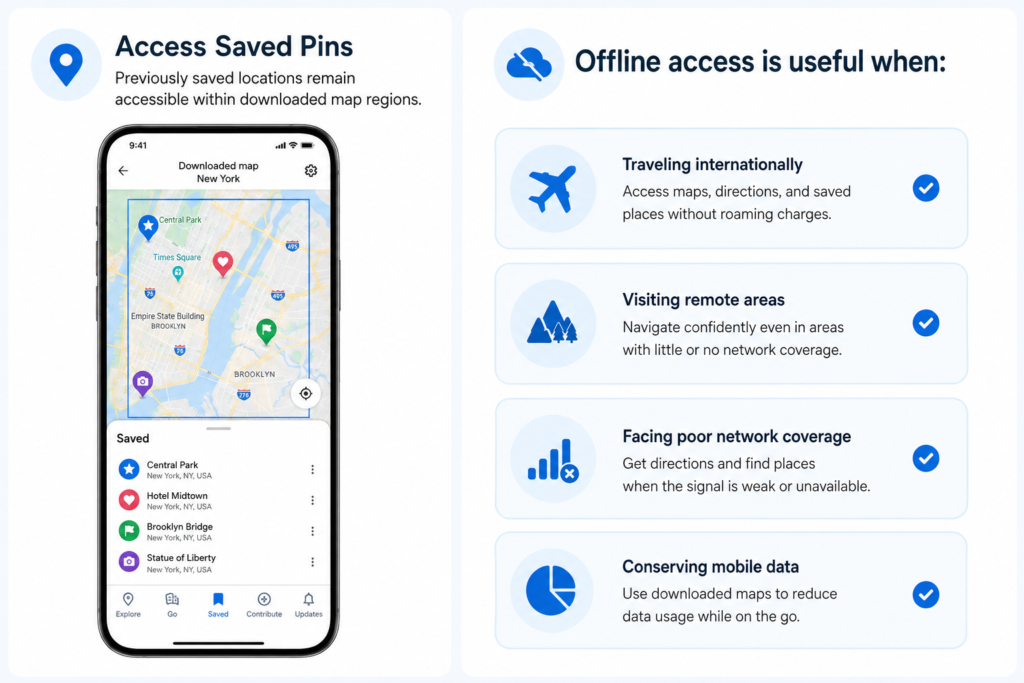
Offline access is useful when:
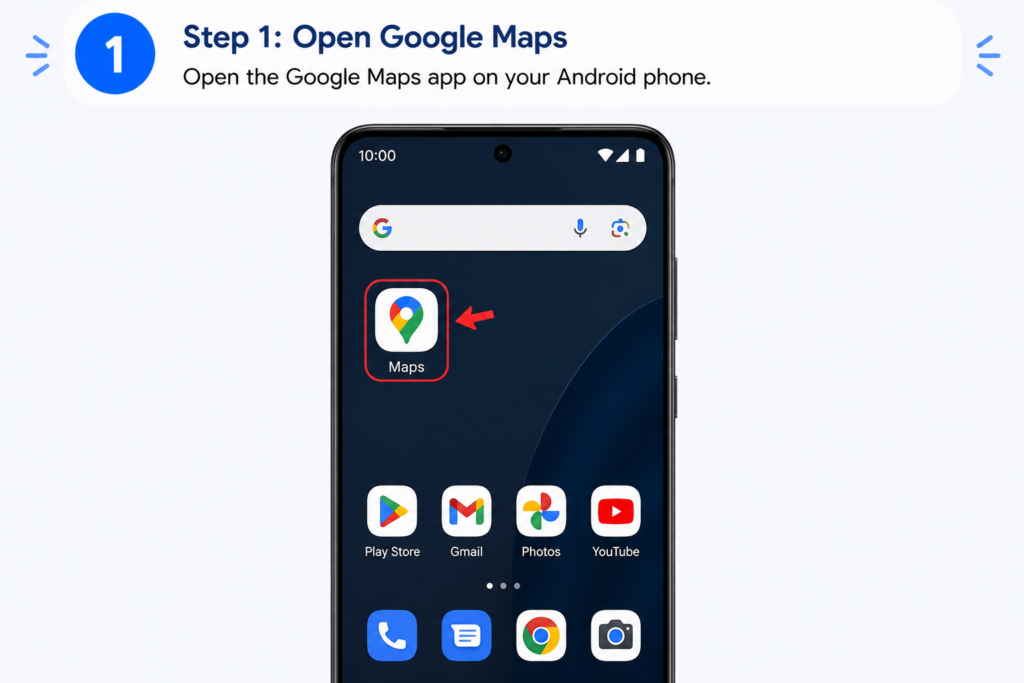
Open the Google Maps app on your Android phone.
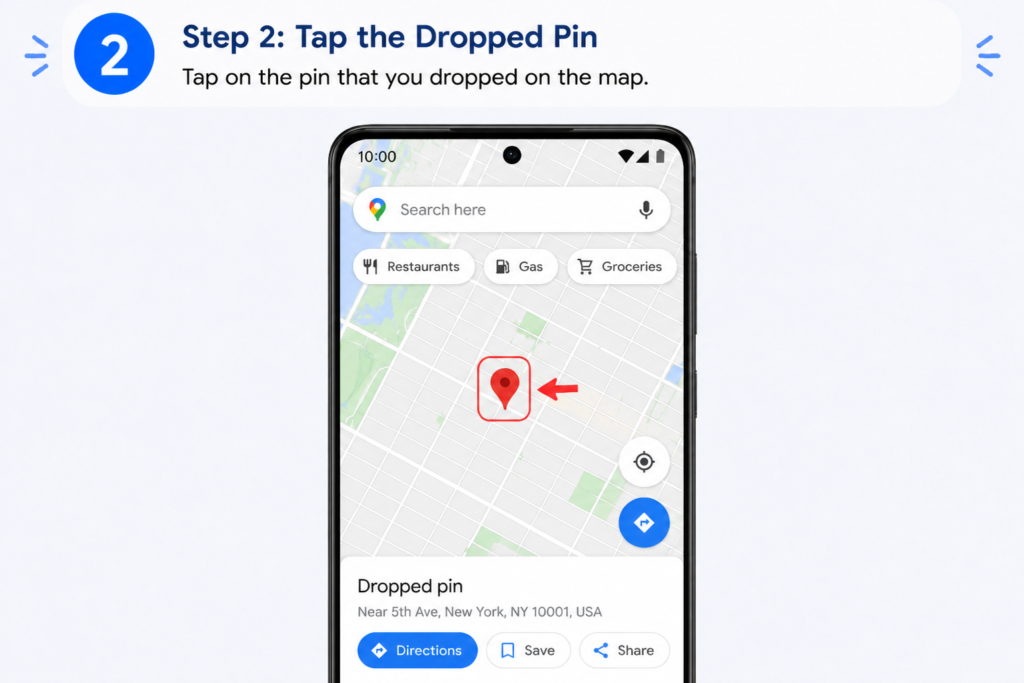
Tap on the pin that you dropped on the map.
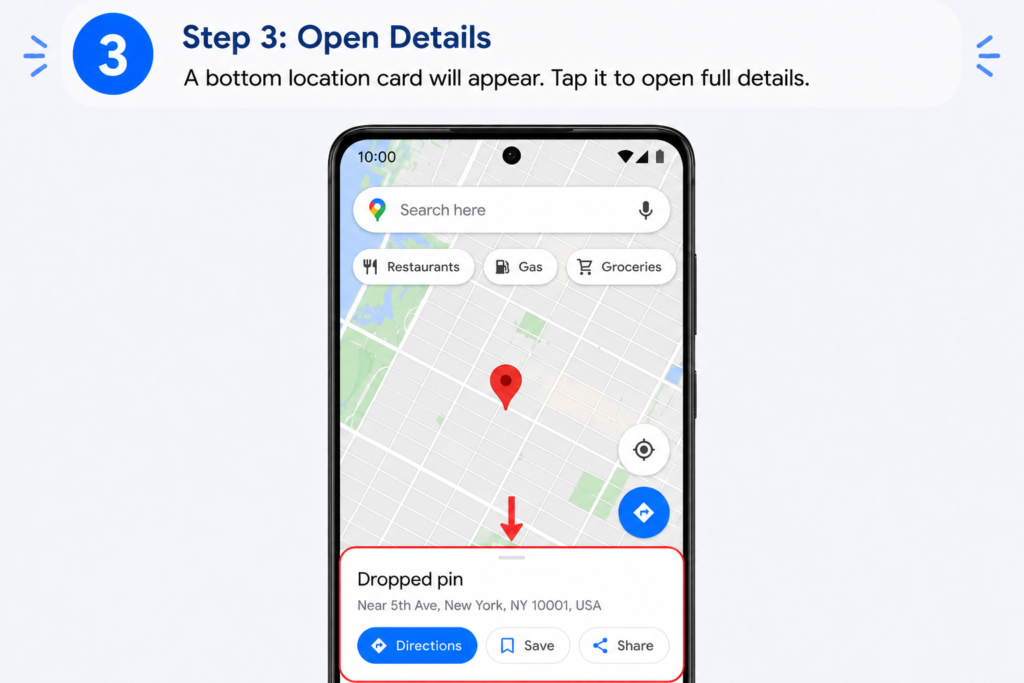
A bottom location card will appear. Tap it to open full details.
Tap the X (close) icon or select Clear (if available).
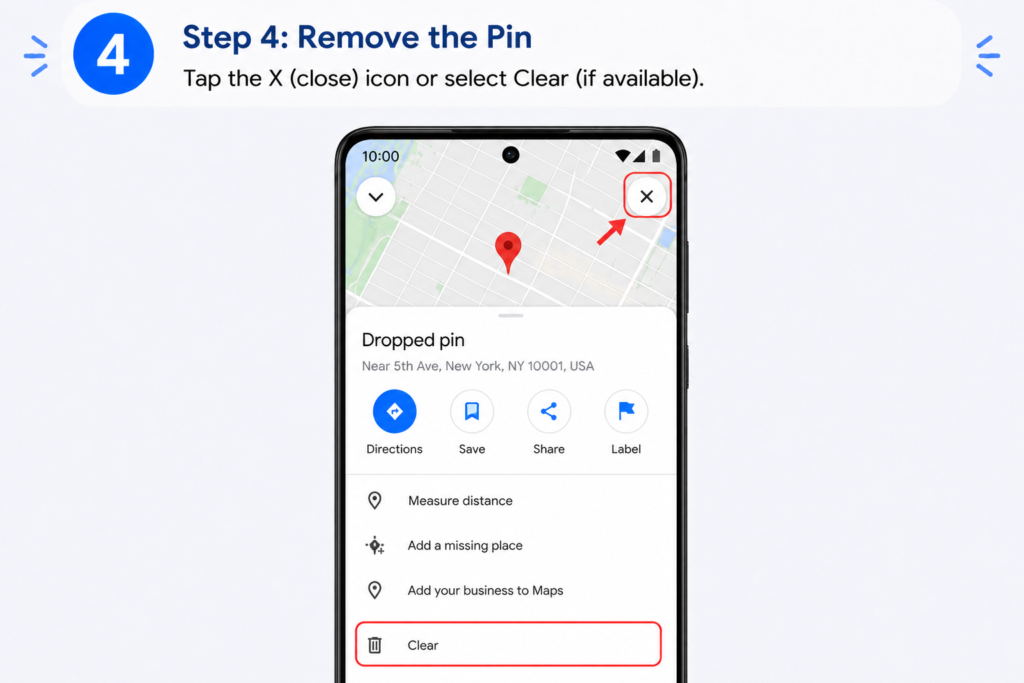
Tap outside the panel or anywhere else on the map.

✔ The pin will disappear instantly.
Launch the Google Maps app on your iPhone.
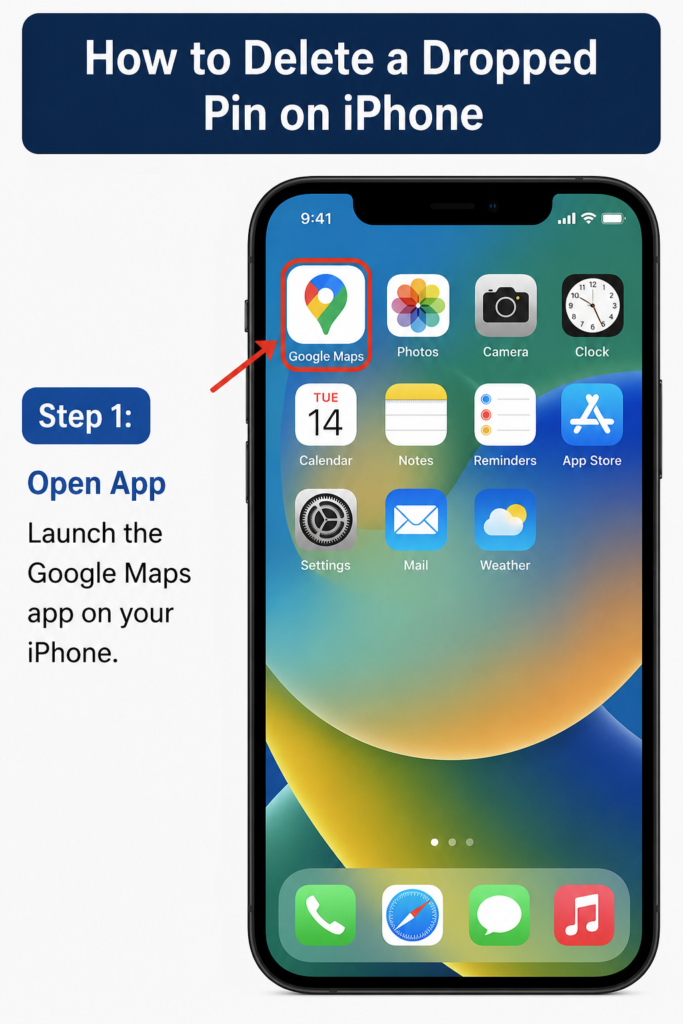
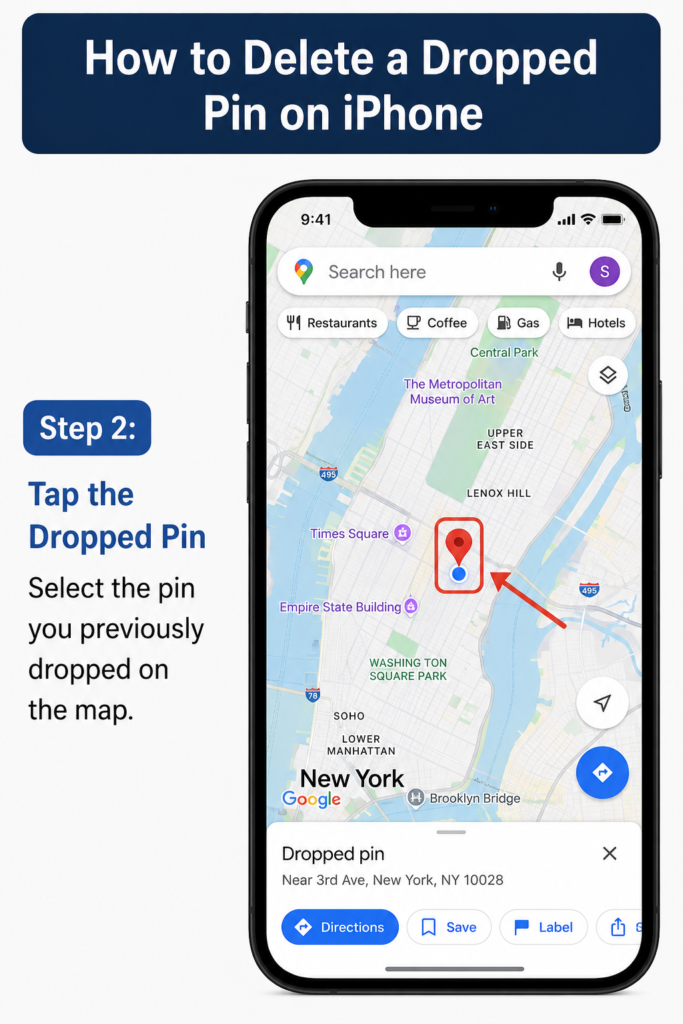
Select the pin you previously dropped on the map.
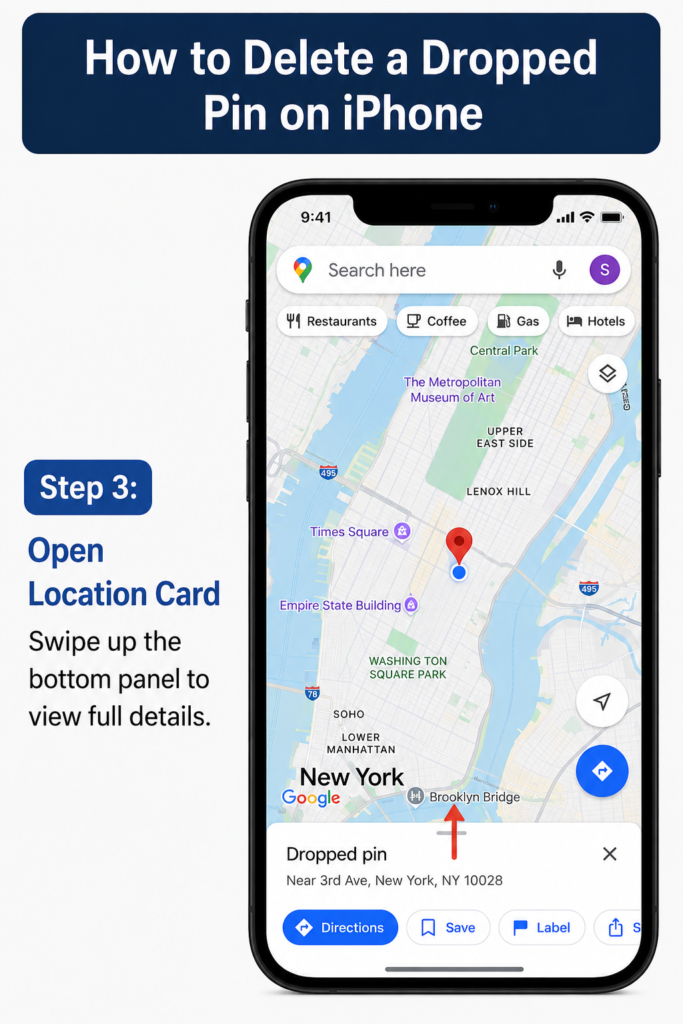
Swipe up the bottom panel to view full details.
Tap the X (close) button to clear the pinned location.
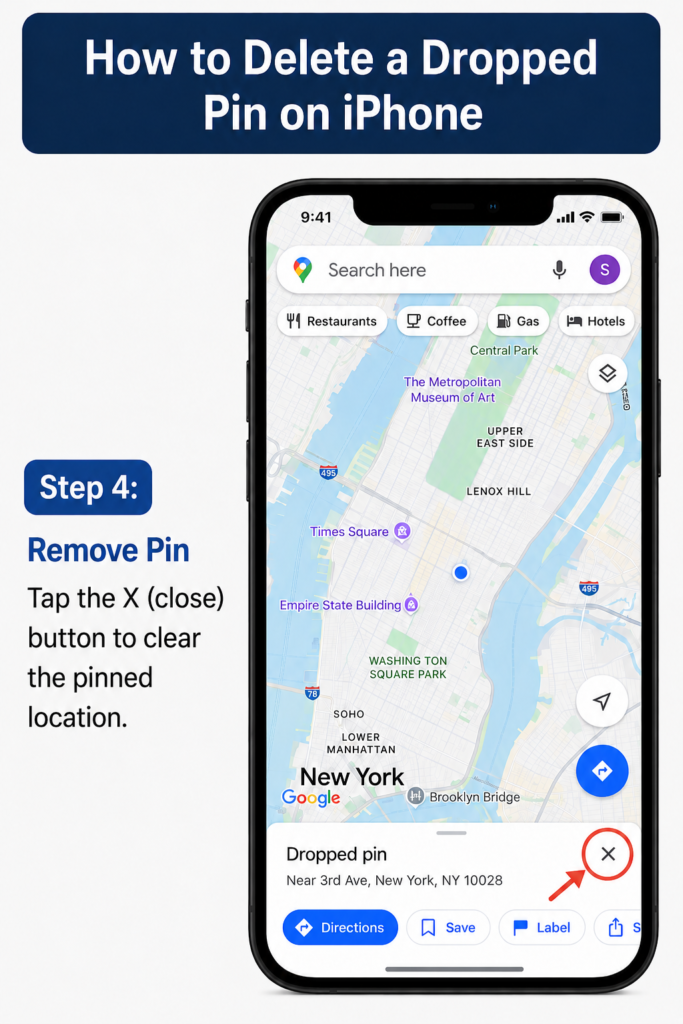
Tap on any empty area of the map.
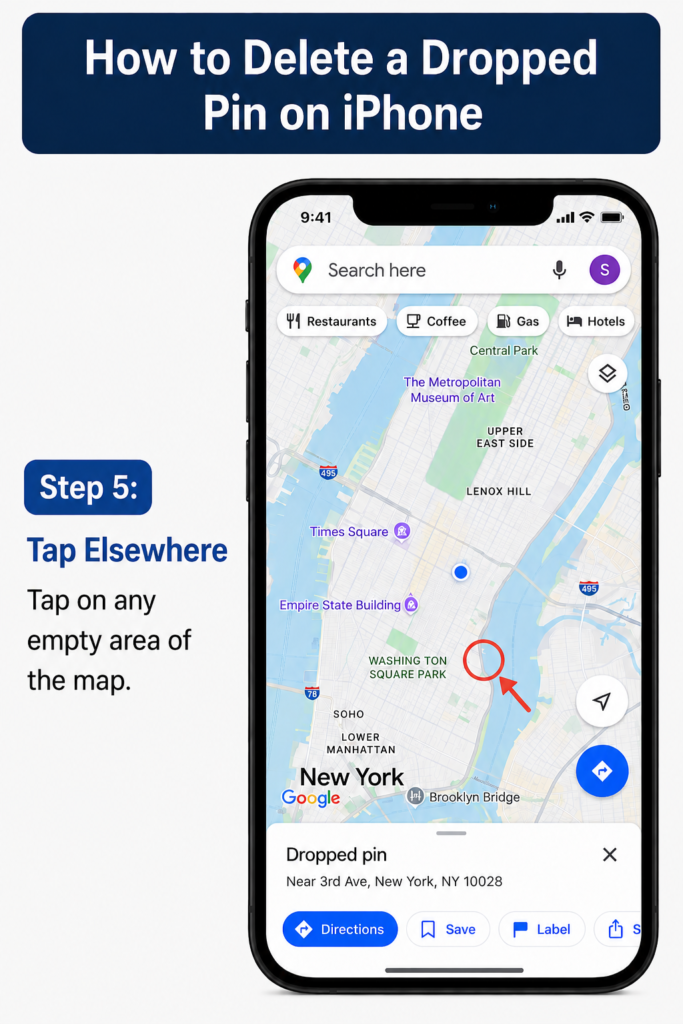
✔ The dropped pin is removed immediately.
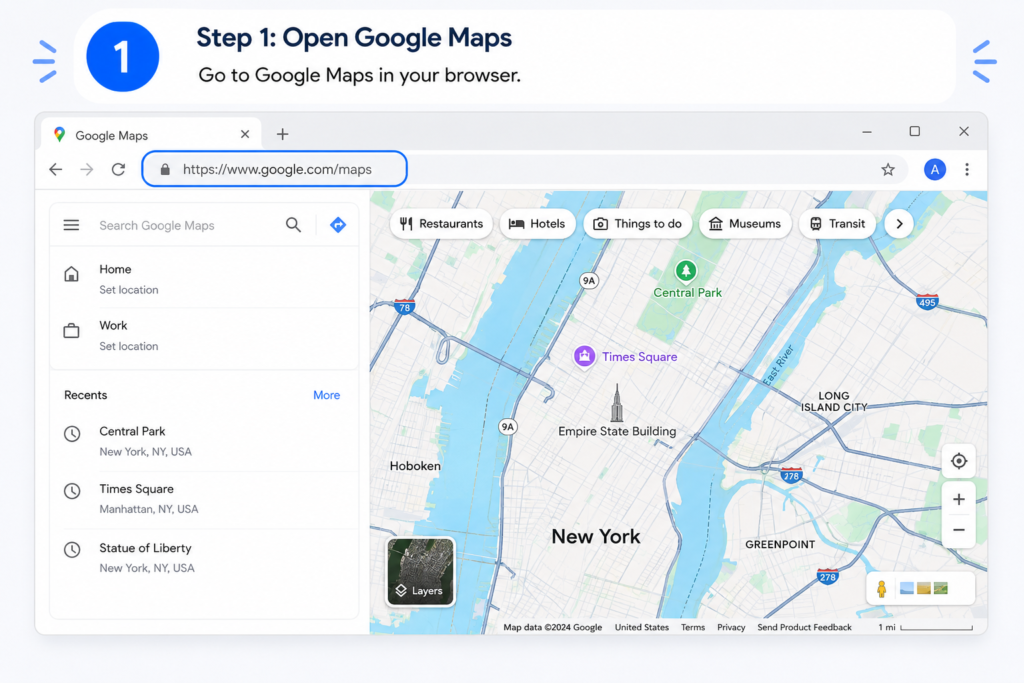
Go to Google Maps in your browser.
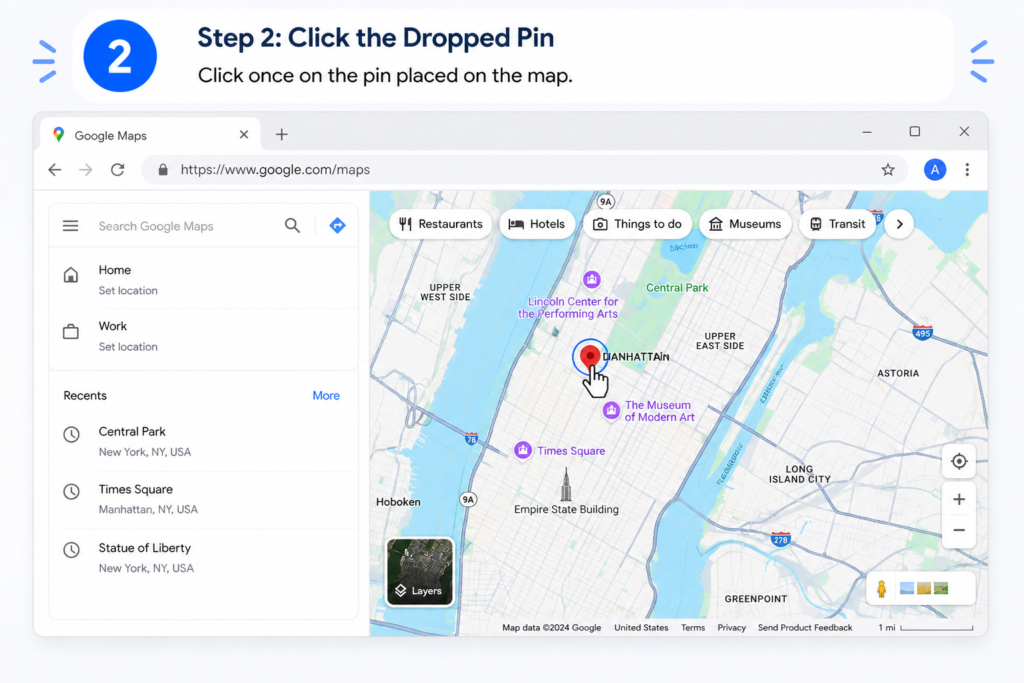
Click once on the pin placed on the map.
Click the X or close button on the location details box.

Click on any other area of the map.

✔ The pin is removed instantly.
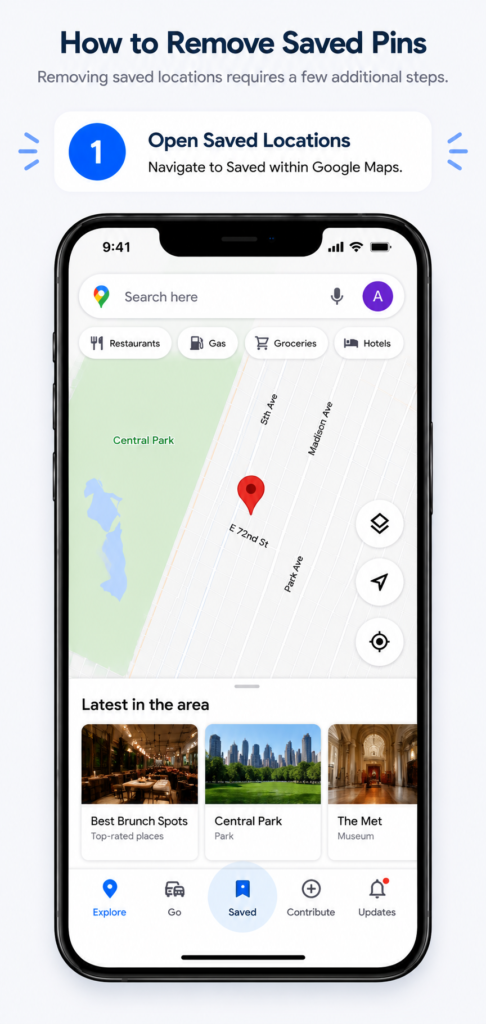
Removing saved locations requires a few additional steps.
Navigate to Saved within Google Maps.
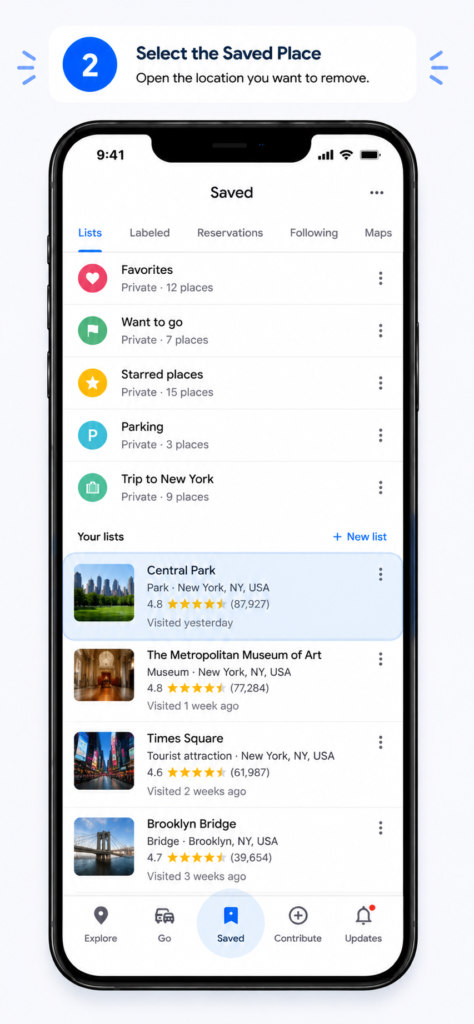
Open the location you want to remove.
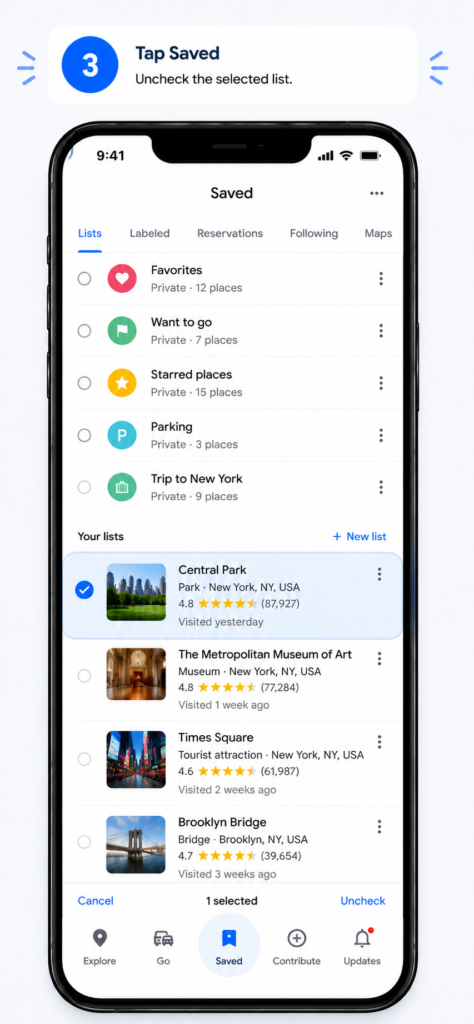
Uncheck the selected list.
The location is removed from saved places.

This helps maintain an organized map collection.
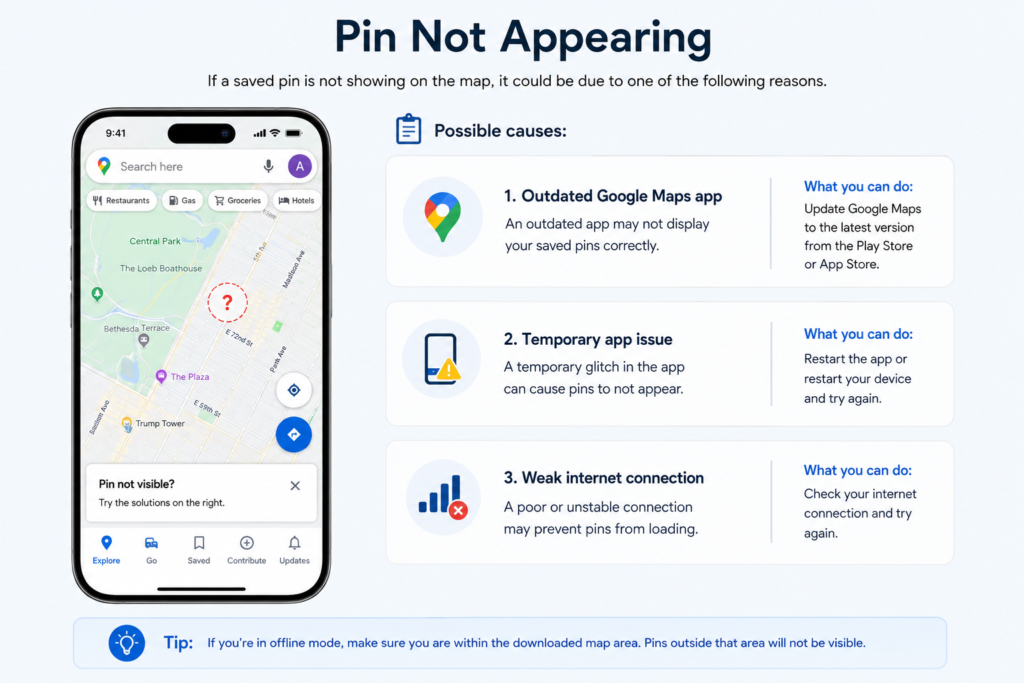
Possible causes:
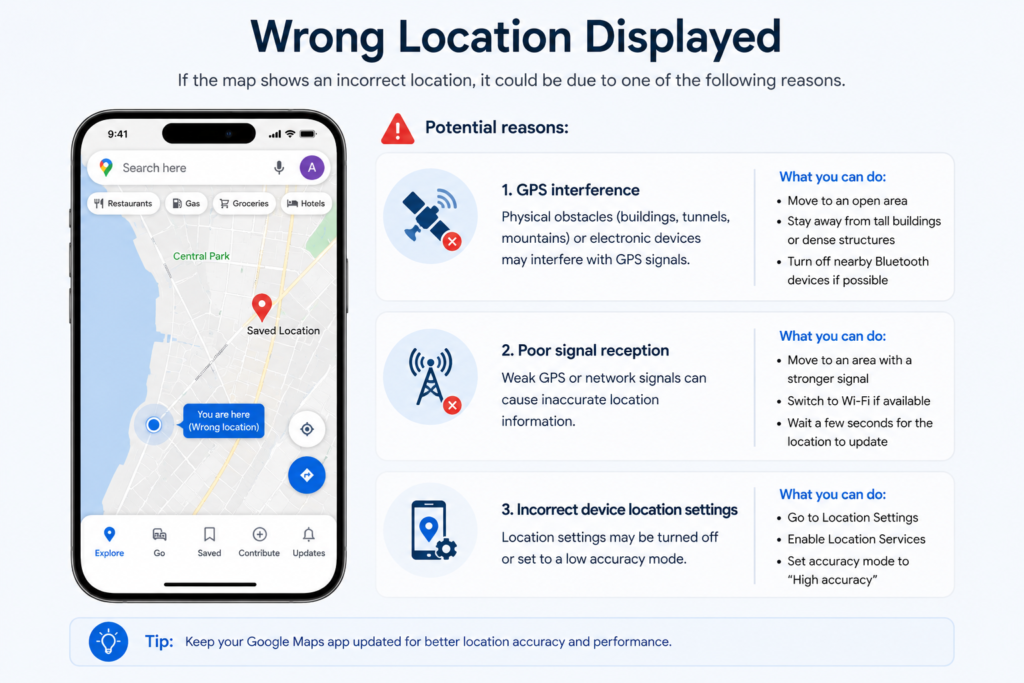
Potential reasons:
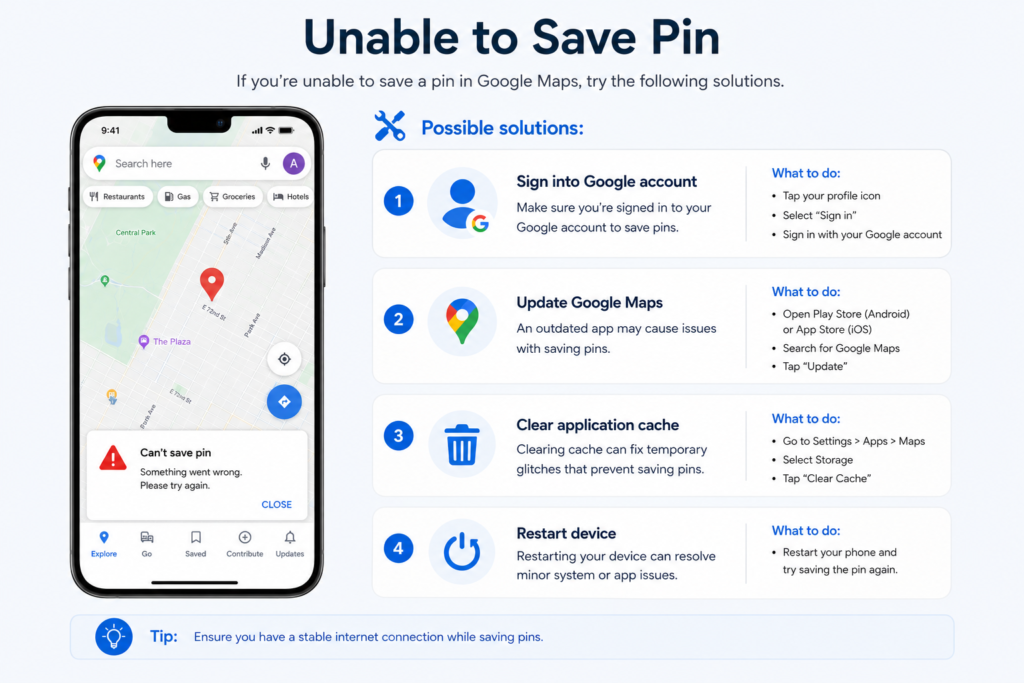
Possible solutions:
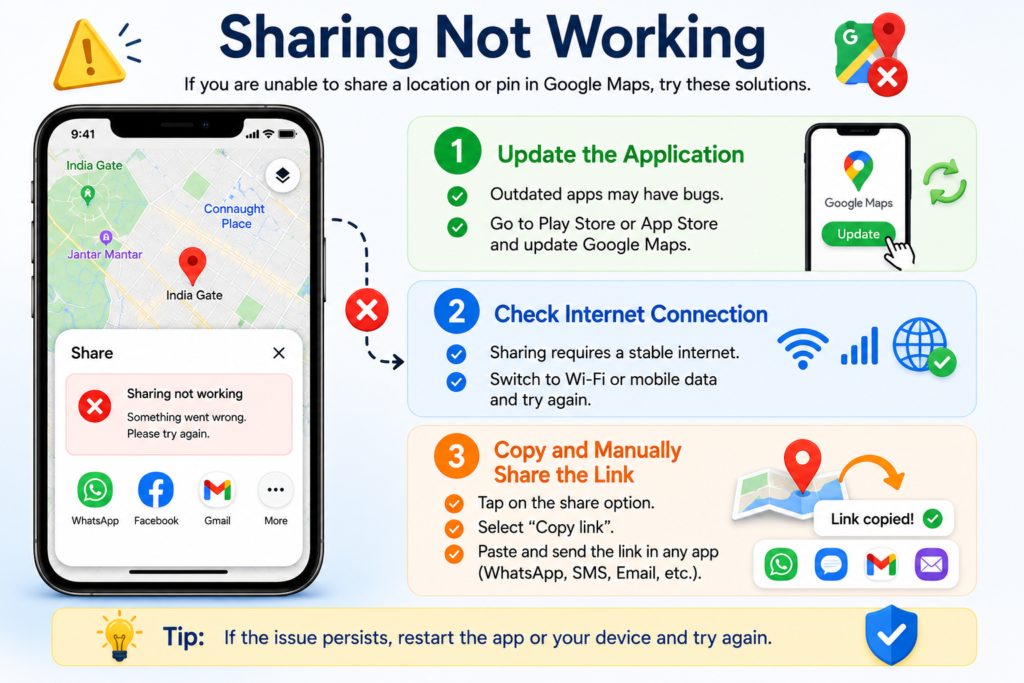
Try:
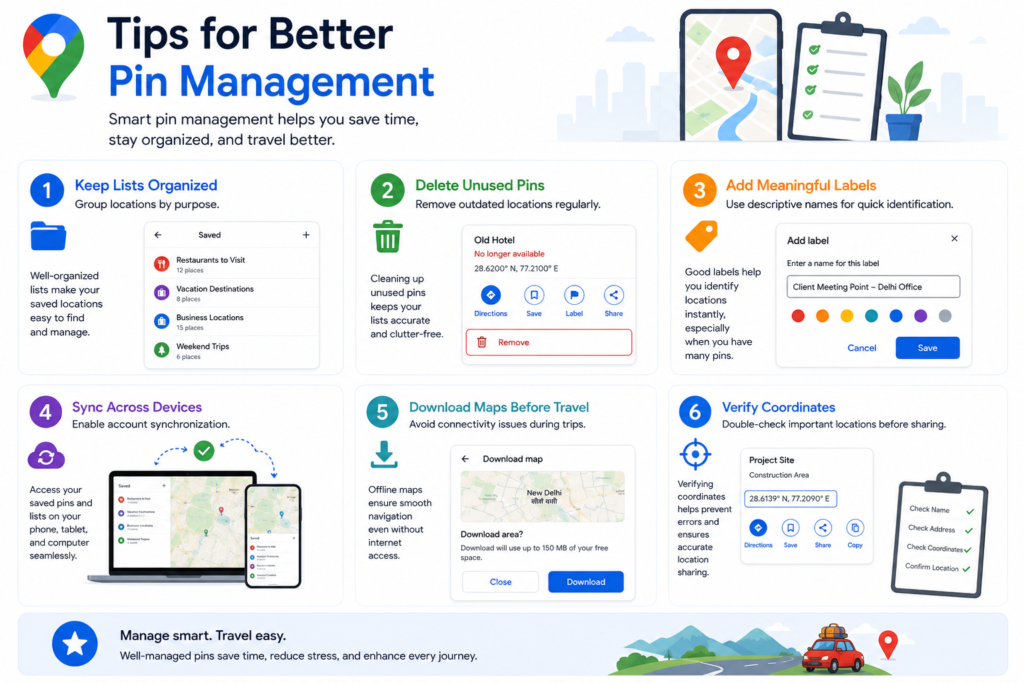
Group locations by purpose.
Remove outdated locations regularly.
Use descriptive names for quick identification.
Enable account synchronization.
Avoid connectivity issues during trips.
Double-check important locations before sharing.
If you’re trying to locate a specific spot that doesn’t have an address, a Dropped Pin Near Me can help. Simply place a pin on the map to view location details, get navigation assistance, and explore nearby attractions and services with ease.

Key Points : –
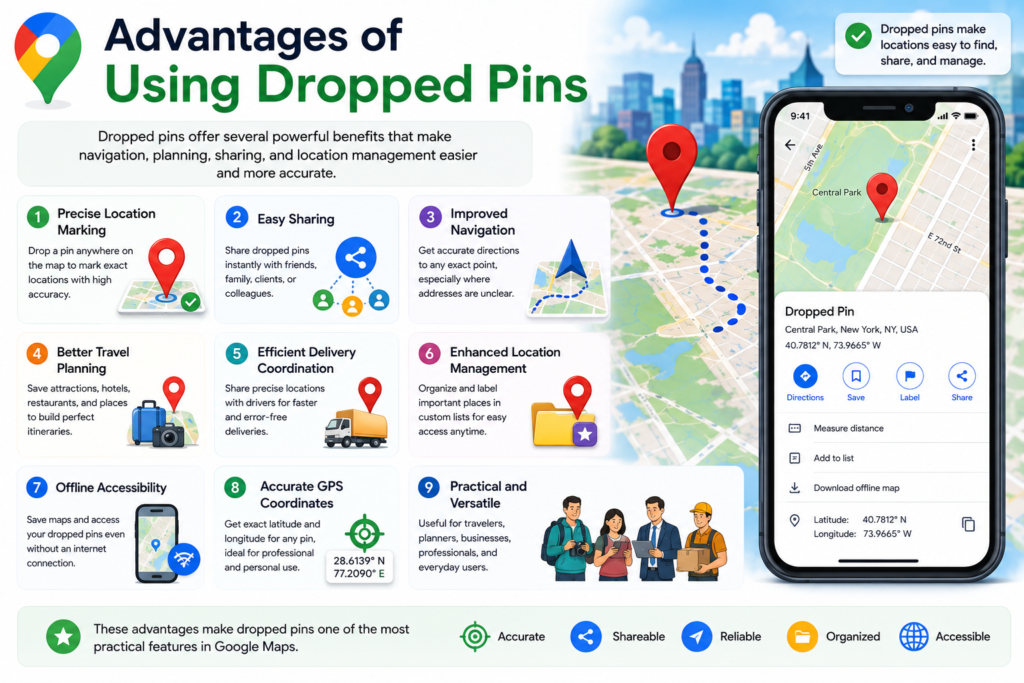
Dropped pins offer several benefits:
These advantages make dropped pins one of the most practical features in Google Maps.
A dropped pin is a manually placed marker that identifies a specific location on the map.
Yes. Save the location to one of your Google Maps lists.
Yes. Google Maps allows sharing through links, messaging apps, email, and social media.
Yes. Every pin includes latitude and longitude coordinates.
Yes, if the relevant map area has been downloaded for offline use.
Accuracy depends on map data and GPS precision, but they are generally highly accurate.
You can add a custom label to identify the location more easily.
Temporary pins disappear when cleared or replaced by another pin.
Yes. Google Maps is free for personal navigation and location management.
Yes. Businesses frequently use pins for customer directions, logistics, and location sharing.
The Dropped Pin in Google Maps feature is a simple yet powerful tool that helps users identify, save, share, and navigate to exact locations. Whether you are planning a trip, organizing deliveries, meeting friends, managing business locations, or exploring new places, dropped pins provide unmatched location accuracy and convenience.
By understanding how to create, save, share, organize, and remove pins across Android, iPhone, and desktop devices, you can use Google Maps more effectively and make navigation easier in almost any situation.
What’s your go-to use for drop pins? Share in the comments below! 🚩
Excellent Work
Certified Team
Quick Turnaround
Most Experienced






Comments
0 comments